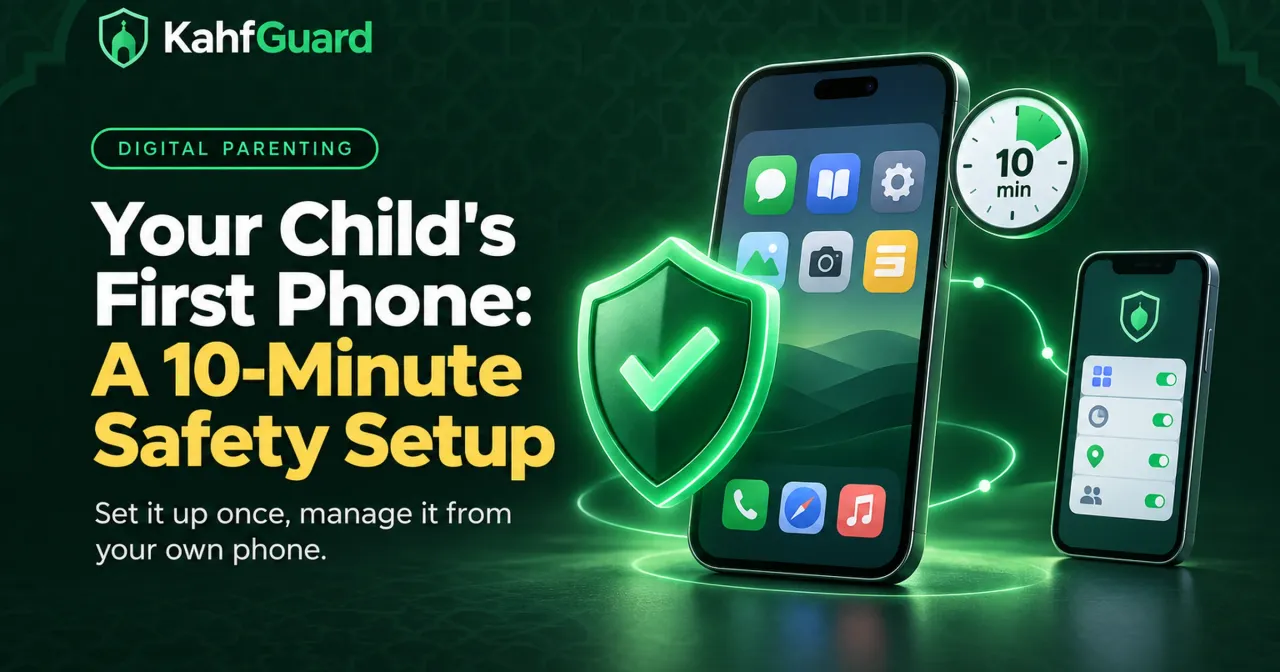
Your Child's First Phone: A 10-Minute Safety Setup
Quick answer
There is no single right age for a first phone for your child. Readiness matters more than the birthday. Before the phone is handed over, set it up: add the child under Family Protection in Kahf Guard, turn on Safe Internet at the Strong level, add app and time limits, and lock the settings so they can't be undone. It takes about 10 minutes, and you manage everything remotely from your own phone.
A first smartphone is a big moment for a child, and a nervous one for parents. The phone brings messaging, games, video and the whole open internet. The good news is that most of the risk can be handled in one sitting, before the child ever unlocks the screen. This guide covers how to decide whether your child is ready, then the exact setup, then the family rules that make the setup last.
Is your child ready for a first smartphone?
Short answer
The question "what age for a first phone" has no universal answer. Families, schools and countries differ. Ask instead whether your child can follow rules, handle a bad moment online, and put the phone down when asked. If most answers are yes, the child is ready. If not, a basic phone or more time is a fair choice.
Use these questions as a quick check:
- Need: Does the child travel alone or spend time away from home, so that a phone solves a real problem?
- Rules: Do they follow screen-time and bedtime rules without constant reminders?
- Honesty: Would they tell you if something upsetting appeared on screen, without fear of losing the phone?
- Self-control: Can they stop a game or video when asked?
- Understanding: Do they know not to share personal details or talk privately to strangers?
If you hesitate on several, consider a first step: a phone without a data plan, a shared family device, or a simpler handset. A first smartphone for kids is easier to manage when it arrives with clear limits from day one.
The 10-minute setup
Do this before the child holds the phone. You need your own phone, the child’s phone, and a Kahf Guard account.
- Add your child under Family Protection (2 min).
On your own phone, install Kahf Guard, sign in, and open Family Protection (Parental Control). Add your child. Each child gets their own profile, so settings stay separate when you have more than one.
- Install and sign in on the child's phone (2 min).
On the new phone, install Kahf Guard from the Google Play Store and sign in with the child's profile. The phone then appears in your Family Protection list.
- Allow the permissions it asks for (3 min).
Kahf Guard needs a few Android permissions to block apps and enforce limits. Follow the on-screen prompts and keep them all on. Without them, blocking cannot work.
- Turn on Safe Internet at the Strong level (1 min).
Strong is the most restrictive filtering level, with Safe Search and YouTube Restricted Mode enforced. It works at the DNS level, in every app and browser, with no VPN. See how Safe Internet works.
- Lock it in, then add limits (2 min).
Switch on uninstall and DNS-change protection so the filter can't be switched off in settings. Then, from your phone, pick the apps to limit and set a daily budget. Follow the app time limit guide.
Family rules to agree on before day one
Technology settings work best next to clear family rules. Write a short agreement together and keep it somewhere visible.
- Where and when: No phones at meals or in the bedroom overnight. Charge the phone outside the bedroom.
- How long: Agree on a daily limit that matches the app limits you set.
- What to do if something upsetting appears: Close it, come to a parent, and know that there will be no punishment for telling.
- Privacy: Never share a full name, address, school, or photos with people you only know online.
- Fair play: Explain what the app can see, and keep that promise (see the next section).
Children follow rules they helped write much more readily than rules handed to them.
Remote control from your phone
Short answer
From your own phone you can change blocking, filters and limits on the child's device, and the change reaches it in seconds. You see app usage and the installed app list. You do not see messages, photos, browsing history or screen content.
Once the child’s phone is linked, Family Protection becomes your control panel:
- Block apps and websites: Add a game, a chat app or a site to the block list at any time.
- Time limits: Set a daily budget per app, from 1 minute to 6 hours. When time is up, the app is blocked.
- Reels and Shorts: Turn off short-video feeds on Android while leaving the rest of the app available.
- Usage insights: See which apps are used, and for how long, by hour and by day. Read the screen time guide.
- Instant changes: Update a rule and it syncs to the child’s phone within seconds.
Because Kahf Guard does not read messages or photos, you can tell your child the truth: you see which apps are used, not what they say in them. That honesty builds the trust that keeps a child talking to you.
Review monthly
A setup that never changes goes stale. Set a calendar reminder and, once a month, spend 10 minutes:
- Check app usage and the installed app list for anything new or unexpected.
- Adjust limits. Loosen them if the child is trustworthy, tighten them if habits slipped.
- Check that the permissions and lock are still on.
- Ask the child what they enjoy and what bothers them, and update the family agreement.
As the child grows, move gradually from tight control to guided independence. The aim is a child who makes good choices without being watched.
Common questions
What age is right for a first phone?
There is no universal age. Readiness matters more: following rules, speaking up when something goes wrong, and stopping when asked. Decide based on your child, your family and your local circumstances.
How do I choose a first smartphone for my child?
Choose a simple, durable Android phone with parental control support rather than the newest model. Make sure it can run Kahf Guard, then set it up before the child uses it.
Can I manage my child's phone from an iPhone?
Yes. Parental Control works from a parent's phone on Android or iOS. The child's device that is protected is an Android phone.
Can I read my child's messages with Kahf Guard?
No. You can see app usage and the installed app list, and the restrictions in place. You cannot see messages, photos, browsing history or screen content.
Is Parental Control free?
Safe Internet DNS filtering is free. Parental Control, which is the remote management from your phone, is part of the premium plans. The Personal Pack covers one child device and the Family Pack covers more.
Can my child turn the protection off?
Kahf Guard includes uninstall protection and DNS-change protection to make that hard. No software is 100% bypass-proof, so pair it with family rules and regular check-ins.
Set up your child's first phone in 10 minutes
Install Kahf Guard on your phone, add your child under Family Protection, and manage filters and limits remotely.
Get Kahf Guard