How to Set App Time Limits on Your Child's Device with Kahf Guard
Set a daily time budget for each app on your child's device from the Kahf Guard parent app. Step-by-step setup with screenshots; apps block automatically when time is up.
Unmanaged screen time can hurt a child’s sleep, studies and physical activity. Parents need a dependable way to set digital boundaries without watching over their child’s shoulder all day.
Kahf Guard is a parental control suite with an App Time Limit feature for children’s devices. It lets children enjoy their favourite apps within a time limit you set in advance.
What You'll Need
- The Kahf Guard app on your (parent/admin) device
- Your child's device added under Family Protection
- About 3 minutes
On Your Child's Device
Make sure the permissions Kahf Guard needs are enabled on your child's device.
Why Set Time Limits on Your Child’s Device?
- Teaches time management: children learn to value their digital time.
- Reduces conflict: an automatic limit means fewer arguments about screen time.
- Encourages offline play: once digital time is up, children are more likely to turn to physical activity.
Step 1: Open the Family Protection Portal
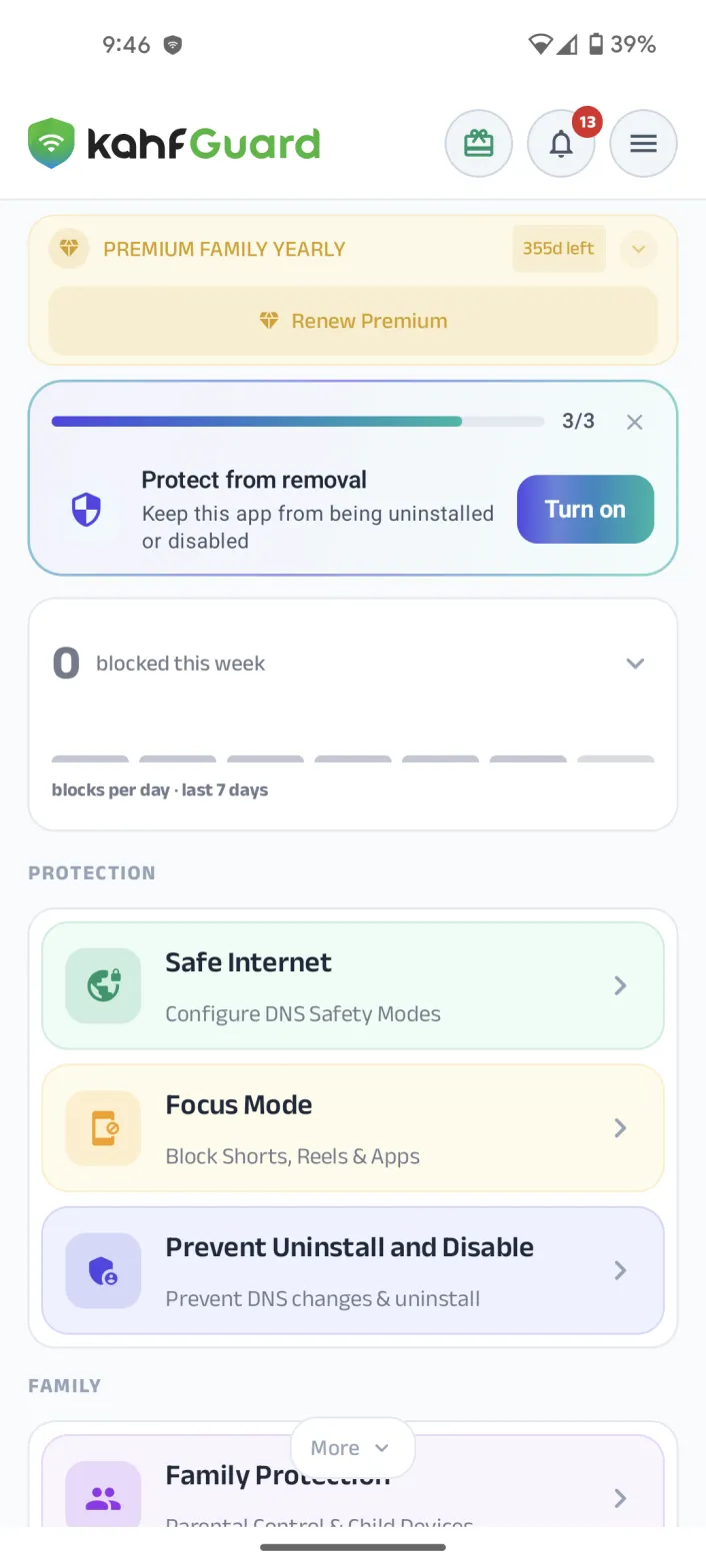
Open the Kahf Guard app on the parent/admin device. Go to the Family Protection (Parental Control) section.
Step 2: Go to App Blocking
In the child portal, select App Blocking to manage your child’s app access.
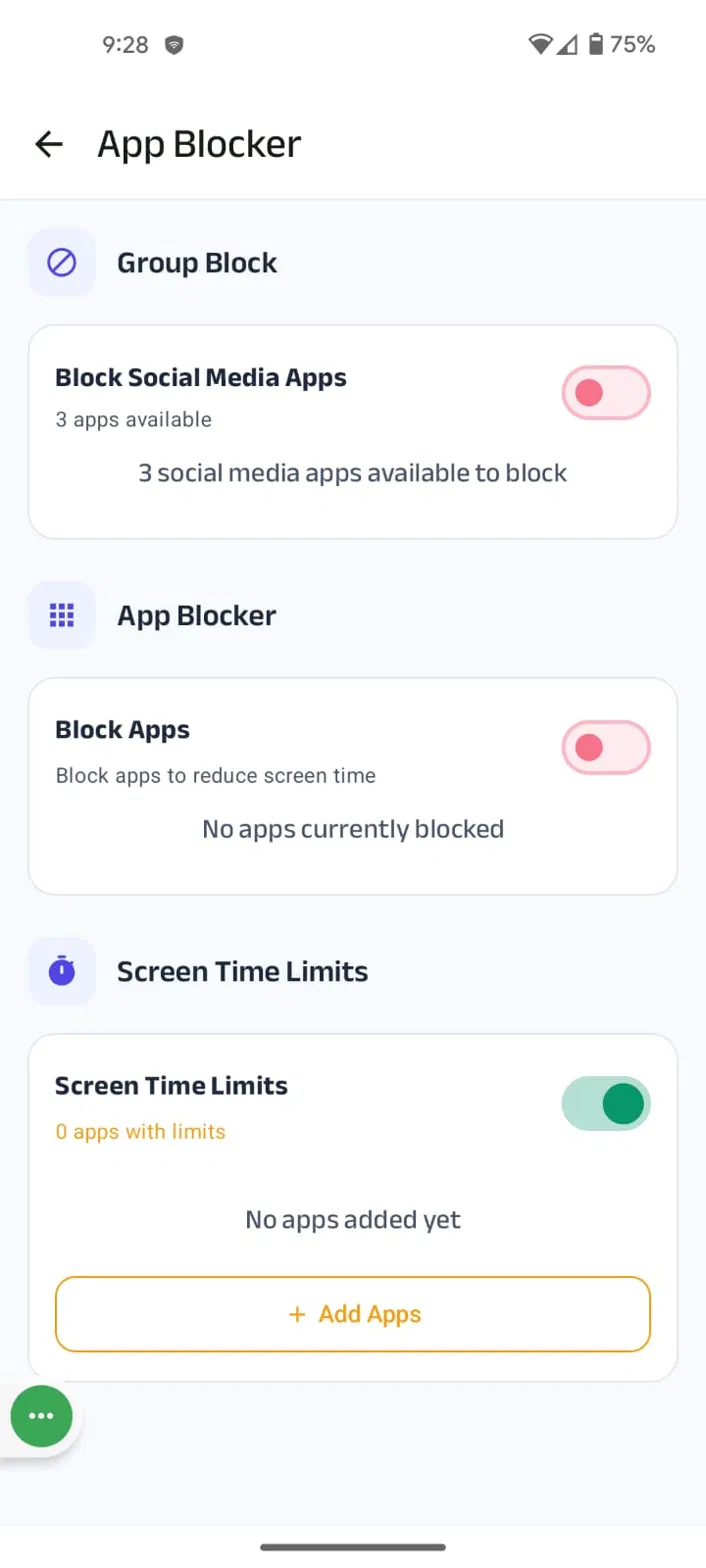
Step 3: Turn On Screen Time Limit
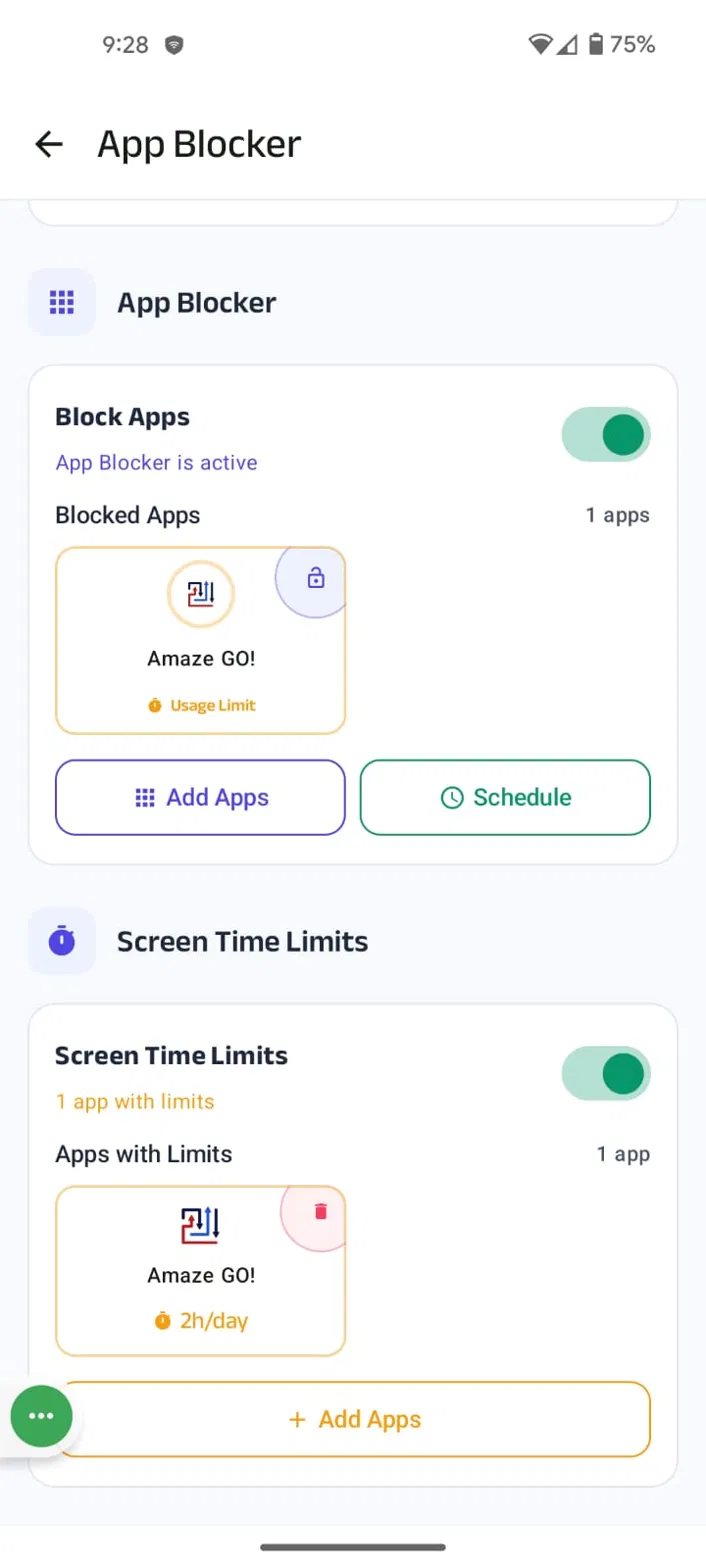
Scroll down and toggle the Screen Time Limit switch. Make sure the required permissions are enabled on your child’s device.
Step 4: Choose Apps and Set Limits
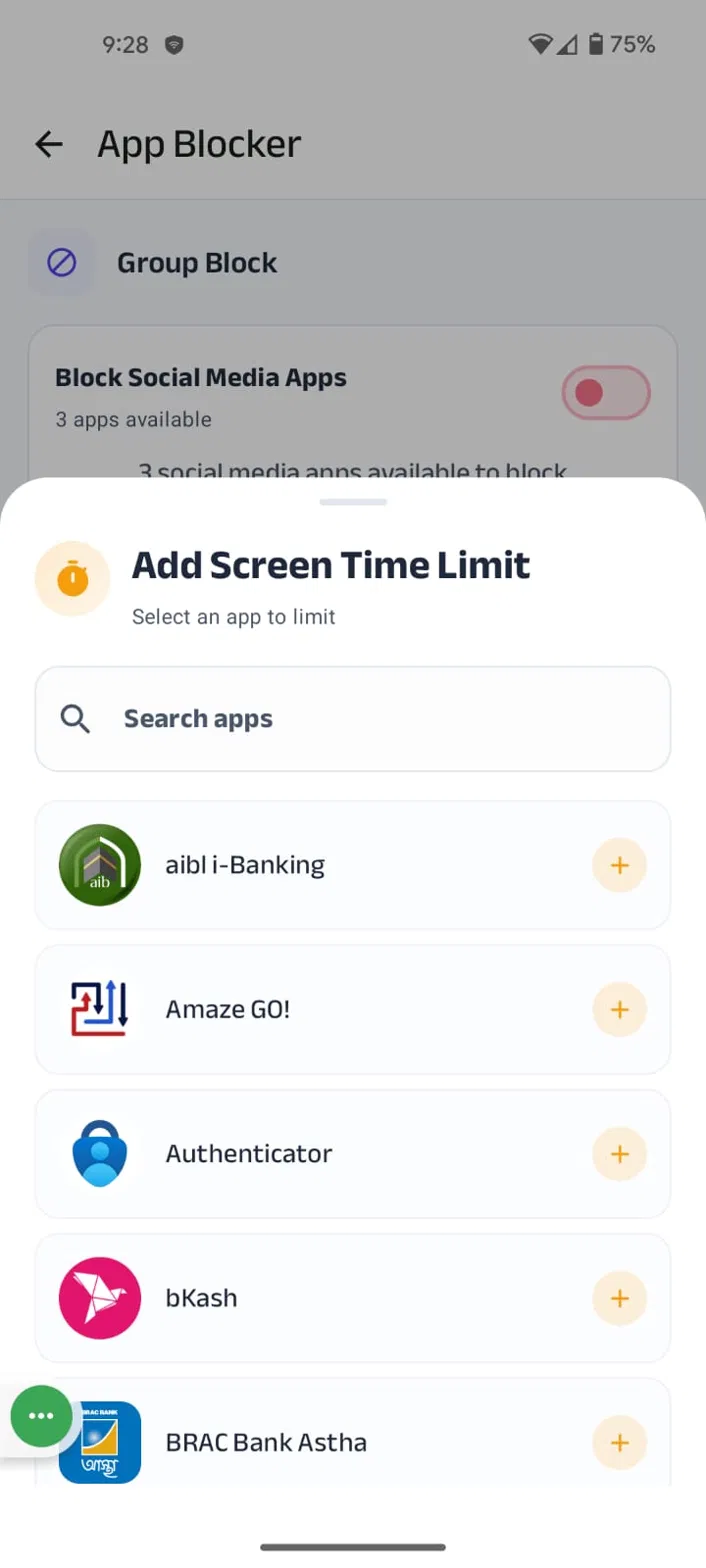
- Tap Add Apps to see the apps installed on your child’s device.
- Select the apps to limit (for example games, YouTube, social media).
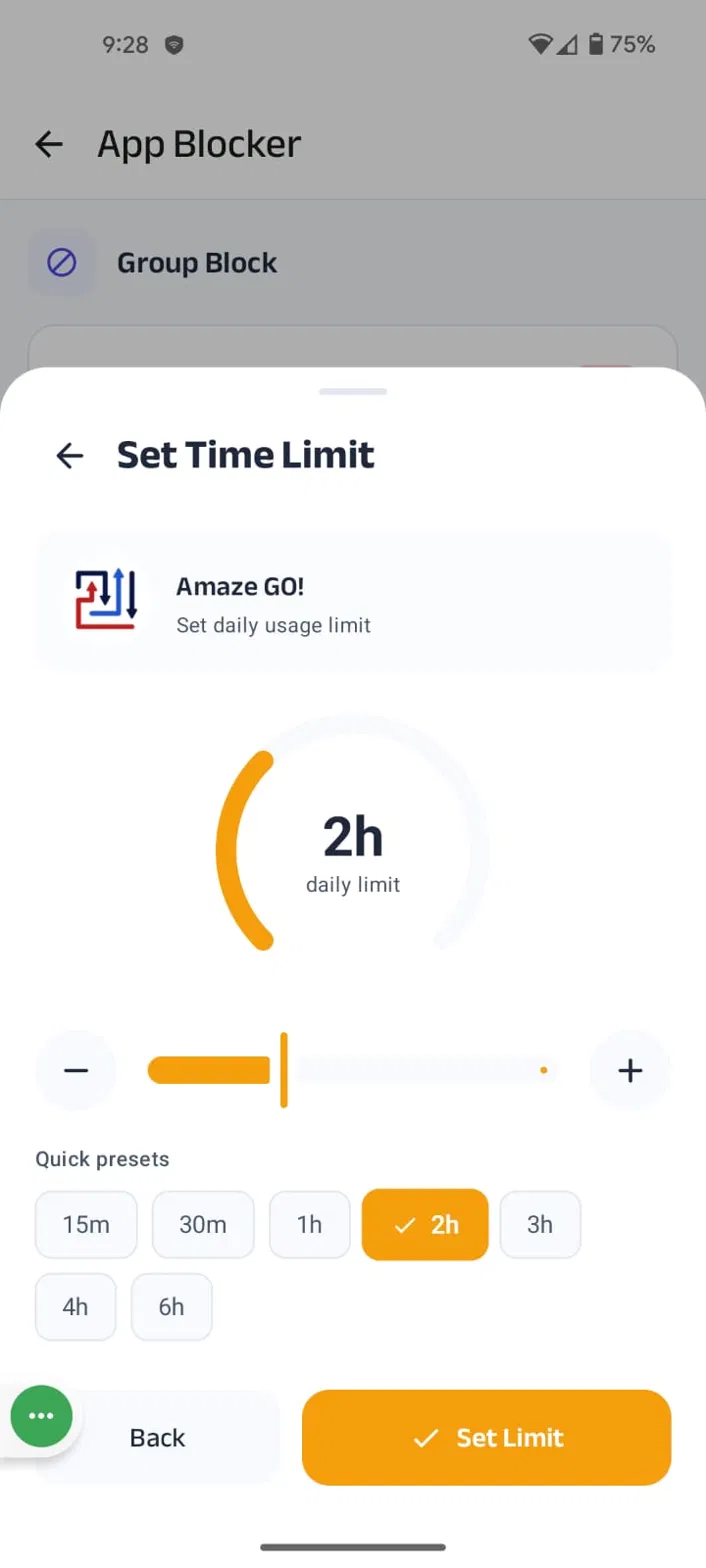
- Set a daily time budget (from 1 minute to 6 hours).
- Tap Set Limit to save the configuration.