How to Set Up Focus Mode & Block Reels with Kahf Guard (Android)
Enable Kahf Guard Focus Mode on Android to block Reels, Shorts, and distracting apps. Step-by-step setup with screenshots, permissions, and video tutorial.
Infinite feeds and constant notifications make it hard to stay focused. One scroll away from your work, and the time to get back into deep focus is far more than the scroll itself.
Kahf Guard’s Focus Mode gives you a customizable digital boundary — for students, professionals, and anyone building healthier habits. In this guide we’ll show how to set it up on Android, from your first restriction to keeping it on permanently.
What You'll Need
- An Android phone or tablet
- Kahf Guard App installed
- About 3 minutes
What Focus Mode Controls
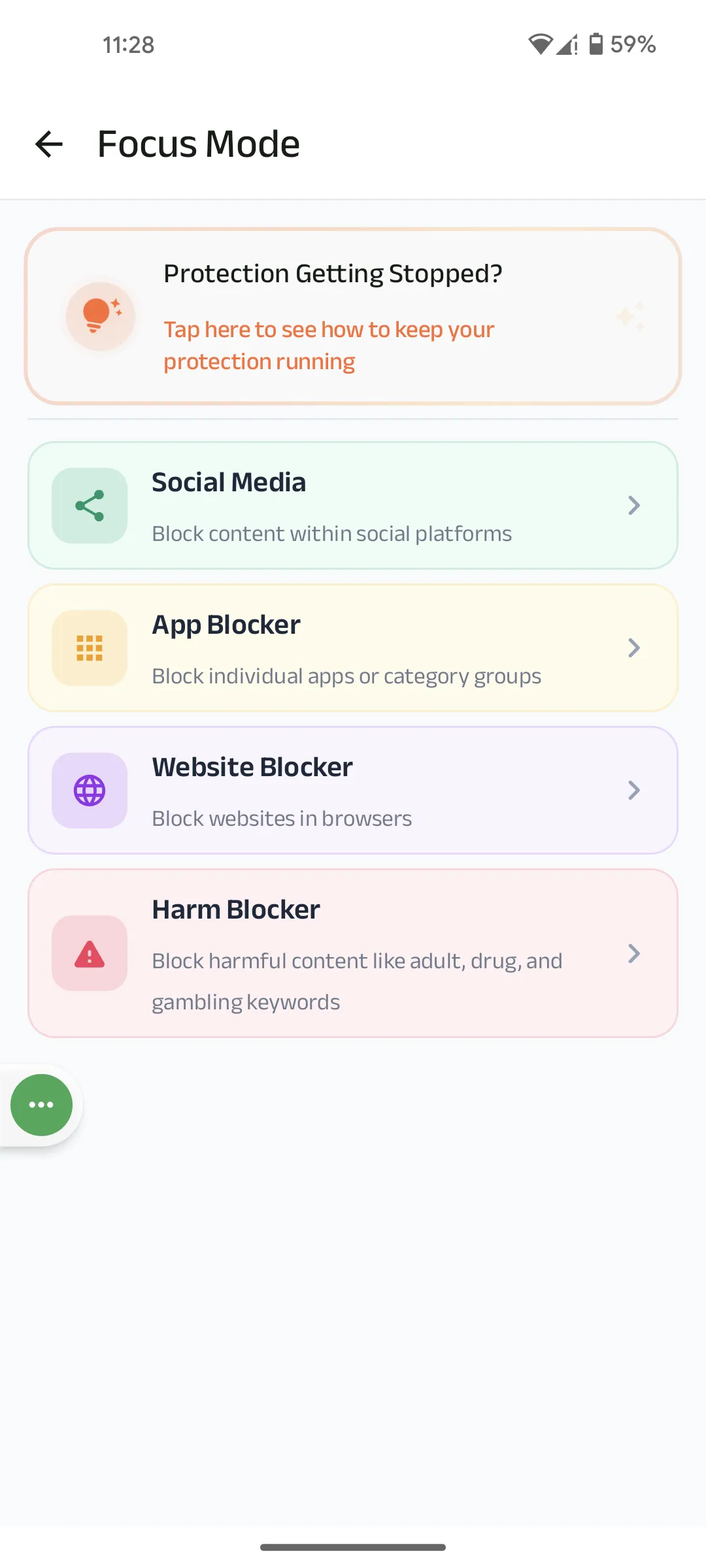
Focus Mode is a single hub for four types of boundaries. Enable the ones that match your distractions, leave the rest as they are:
| Tool | What It Does |
|---|---|
| Social Media | Block Reels, Shorts, and Status tabs without losing the whole app. |
| App Blocker | Block individual apps or entire categories, now or on a schedule. |
| Website Blocker | Block specific sites in your browser, permanently or by timer. |
| Harm Blocker | Catch harmful keywords on-screen — adult, drug, and gambling content. |
Step 1: Open Focus Mode & Choose What to Block
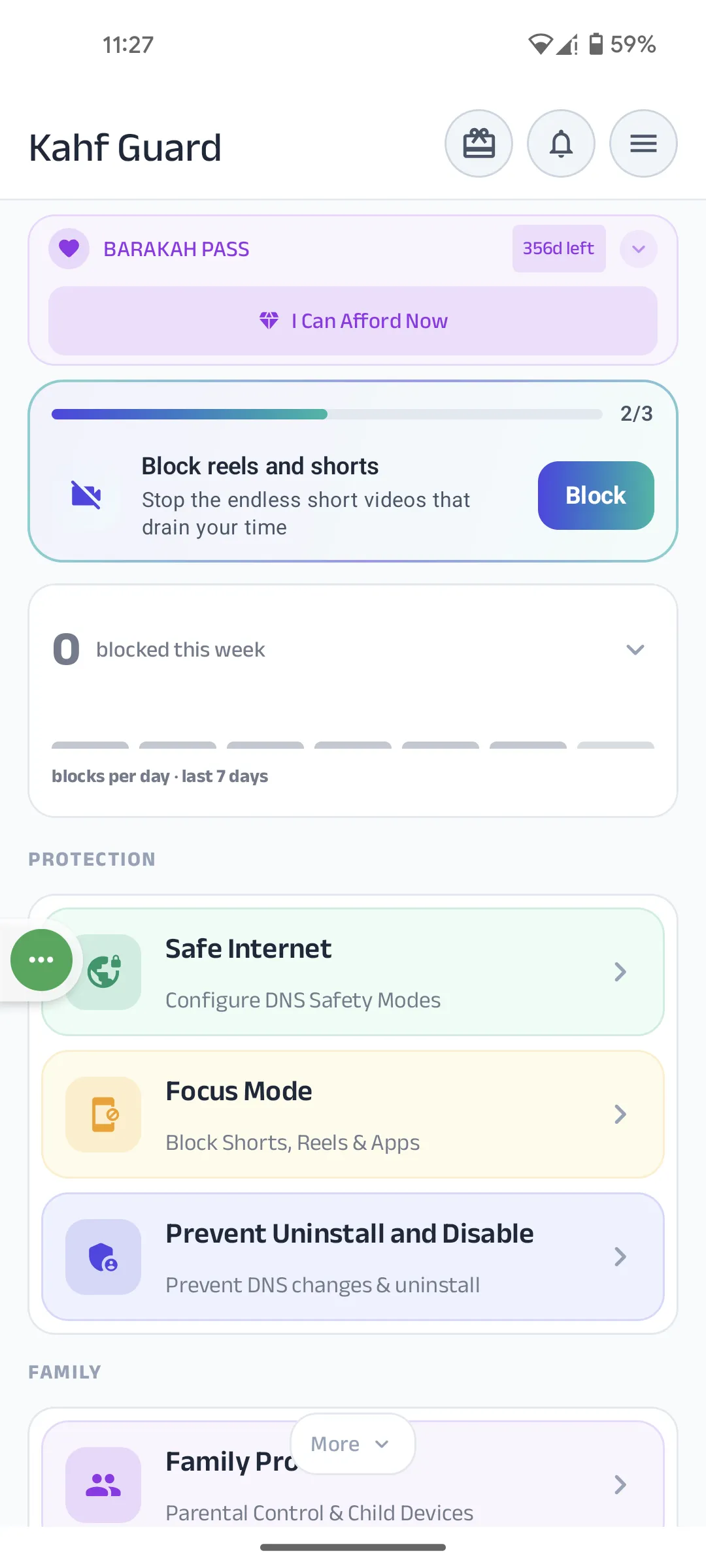
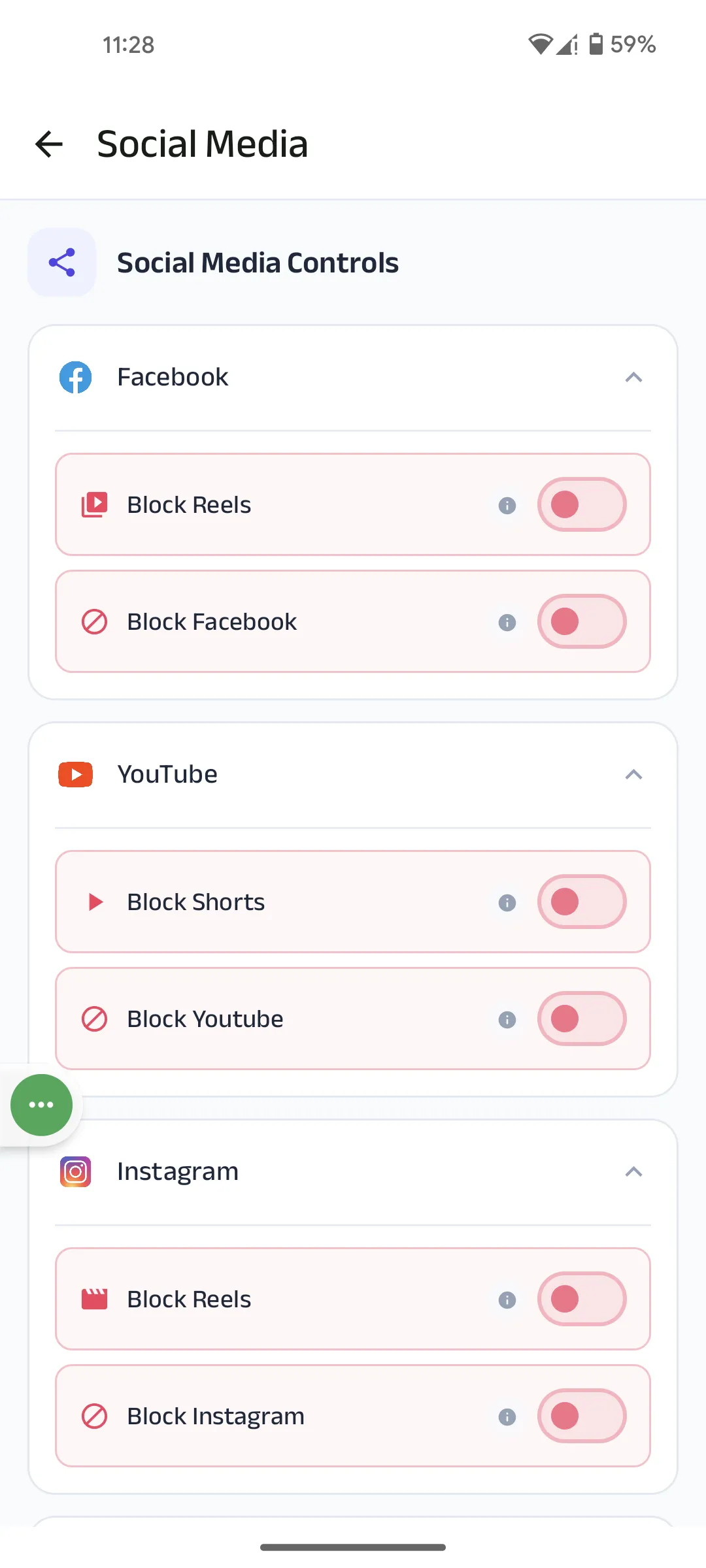
Open Kahf Guard and tap Focus Mode on the dashboard. Pick a tool — Social Media for quick distractions. Toggle a restriction, like Block Reels under Facebook, YouTube, or Instagram. The first switch flip starts guided setup.
Step 2: Grant Background & Notification Access
Focus Mode needs to run silently in the background to work. Allow two things when prompted:
- Background optimization — stops your phone’s battery saver from putting the app to sleep.
- Notifications — lets Kahf Guard tell you when something is blocked or a limit is reached.
Step 3: Review Privacy & Accessibility Notices
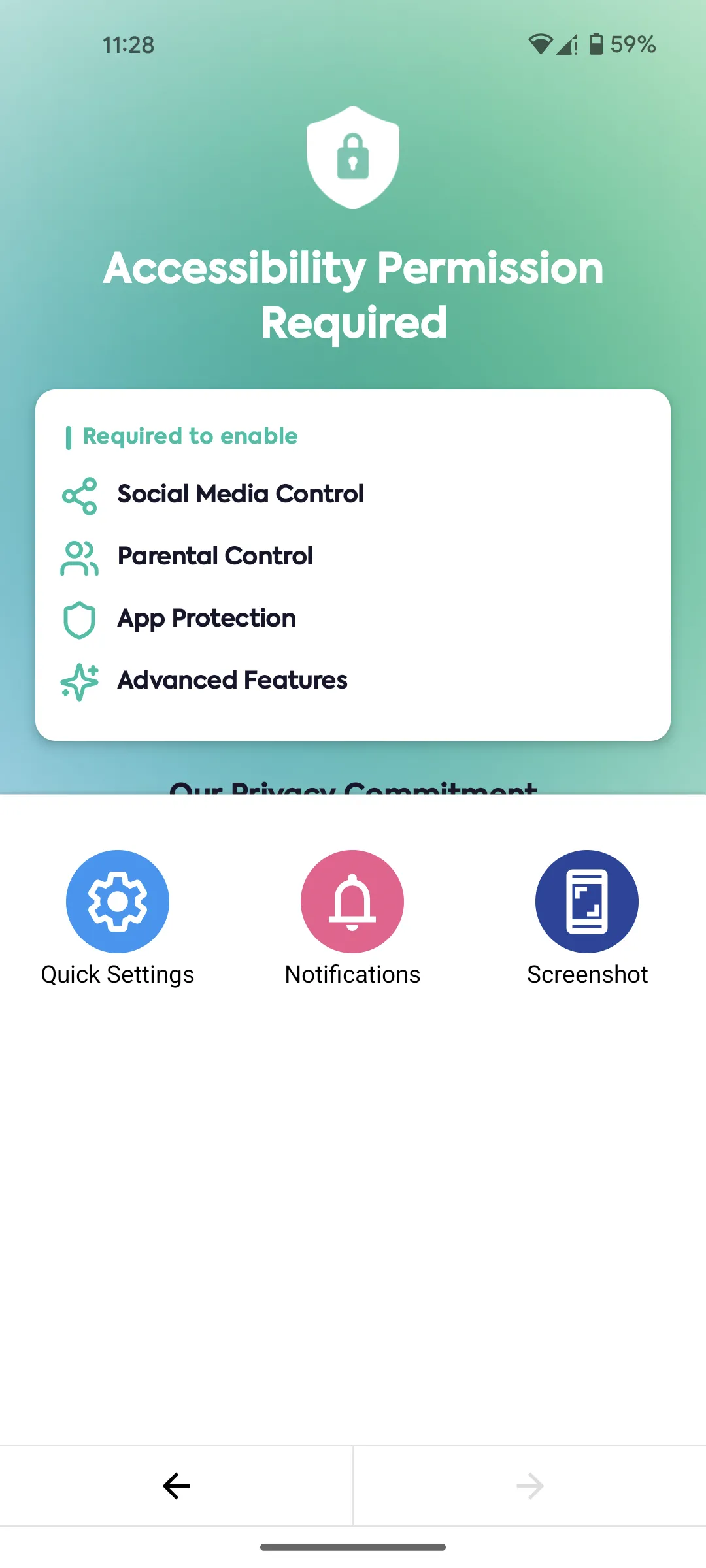
Focus Mode uses Android’s Accessibility service to block content as it appears on screen. Kahf Guard only reads what’s on screen to make blocking decisions — no browsing history or app usage data is collected or sent. Read the notice and tap I understand and grant permission.
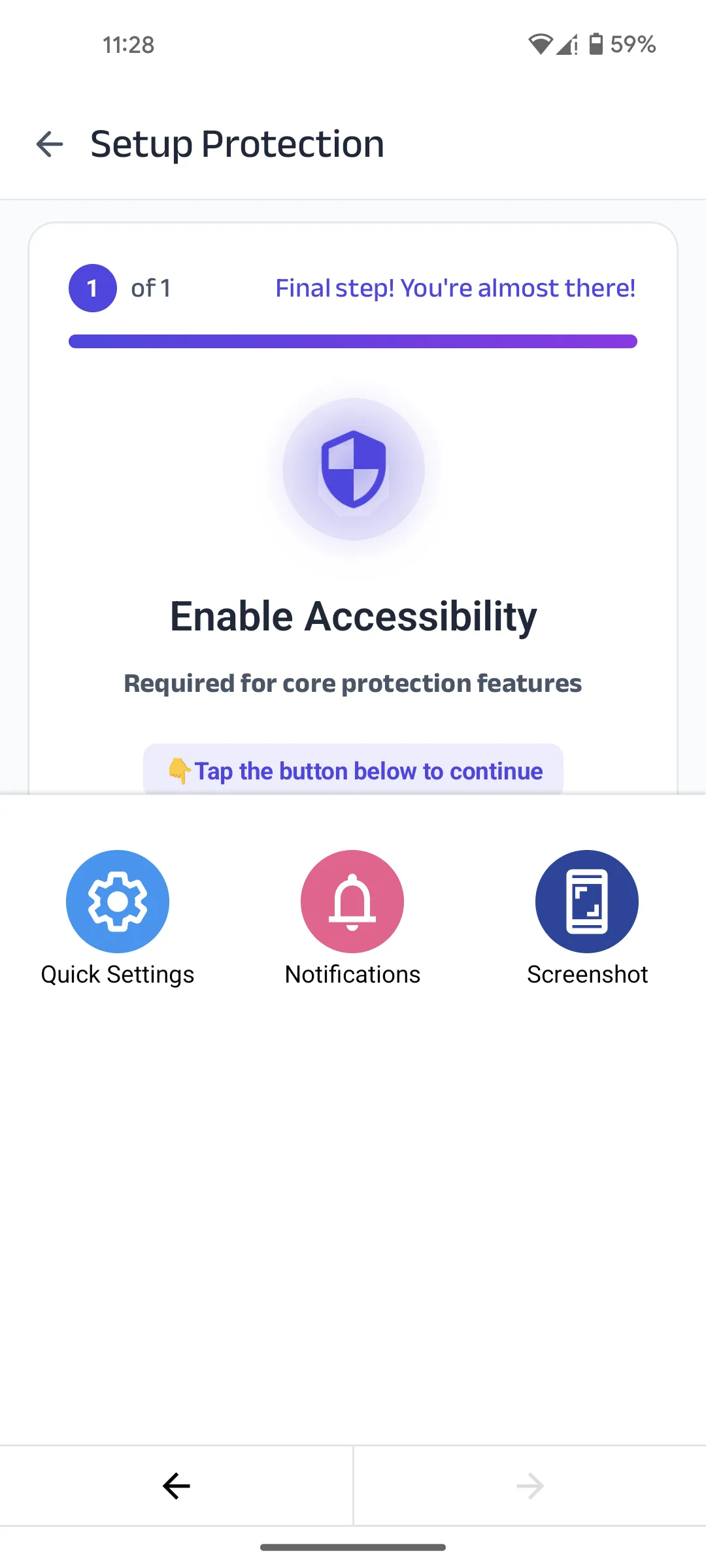
Step 4: Enable Kahf Guard in Accessibility Settings
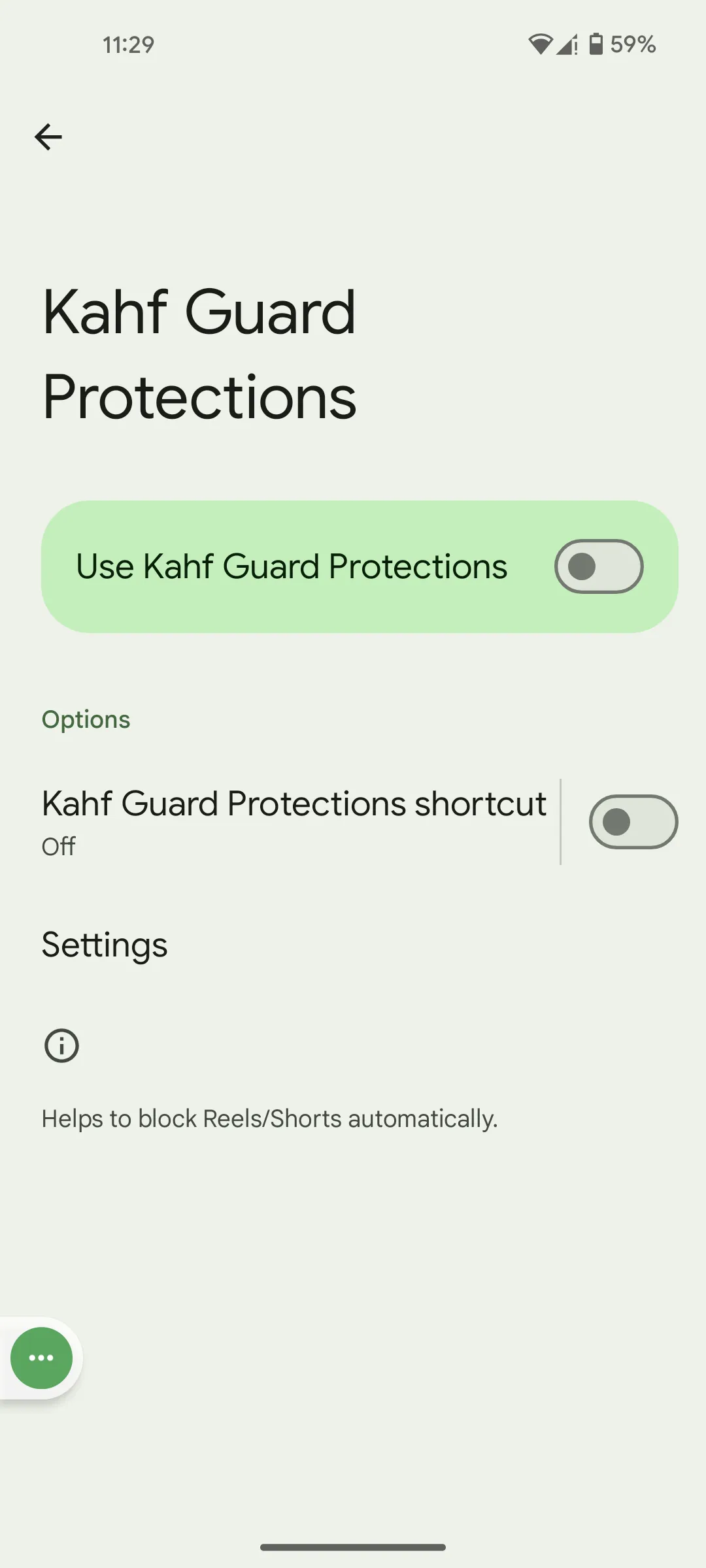
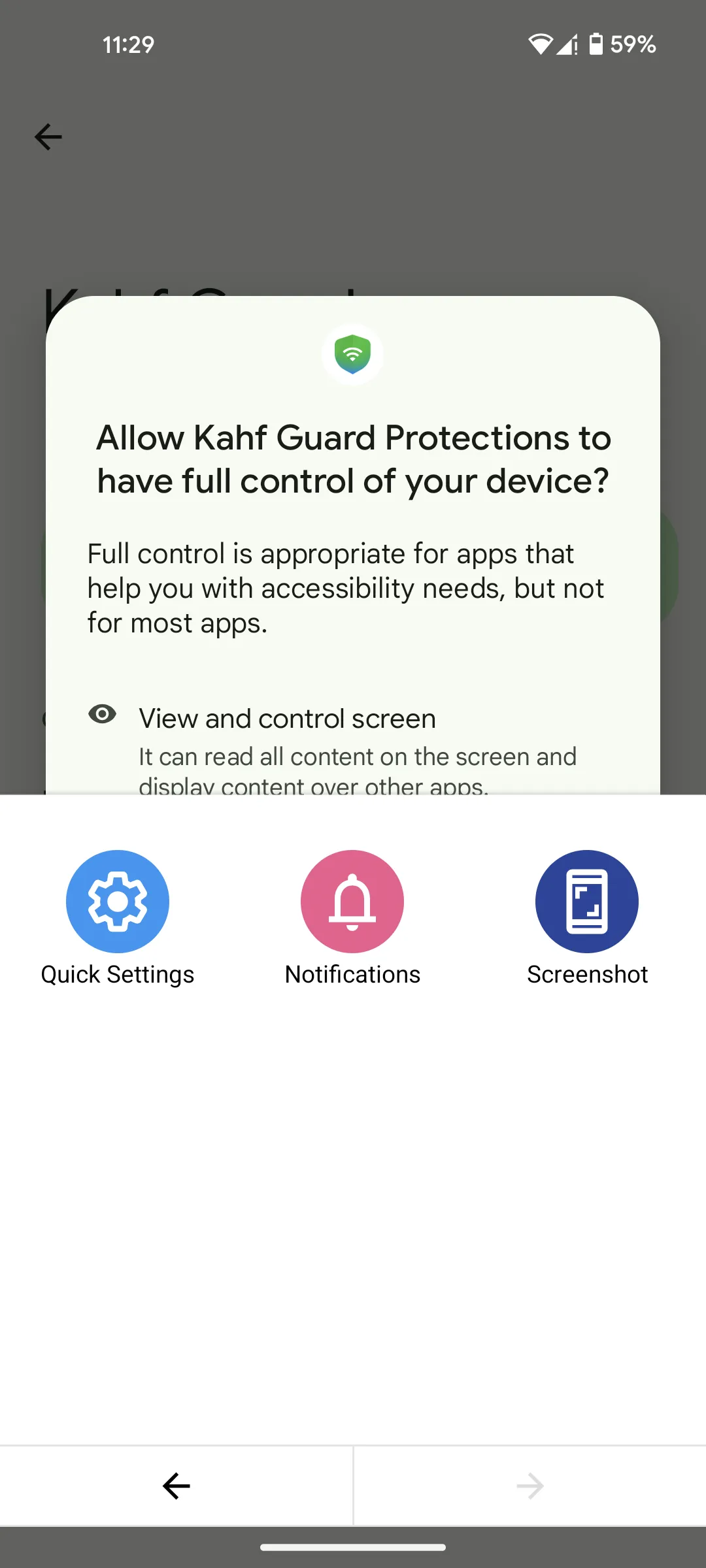
The button takes you to your phone’s Accessibility settings. Complete the toggle here:
- Find Kahf Guard Protections in the list.
- Enable Use Kahf Guard Protections.
- Confirm by tapping Allow on the system pop-up.
Step 5: Whitelist Kahf Guard
One last safety net. Many phones have a battery saver or “cleaner” that kills background apps to save power — and it can shut Focus Mode off without warning.
With Focus Mode on, you decide what reaches your screen and when. Mute the noise, protect your focus, and give your day back to what matters — your work, your studies, and your deen.
Frequently Asked Questions
Does Focus Mode block the whole app or just Reels?
Your choice. You can block just Reels and Shorts inside an app, or block the entire app. Each platform toggles independently.
Why does Focus Mode need Accessibility permission?
To detect whether blocked content is on screen. Kahf Guard only reads UI labels — it doesn't collect your messages, browsing, or app usage data.
Focus Mode stops working after a while — why?
A battery saver or phone cleaner is killing the app in the background. Whitelist Kahf Guard in that app to keep Focus Mode on.
Can I schedule Focus Mode for work or study hours?
Yes. Inside App Blocker you can set schedules and daily time limits per app, so restrictions apply only during your chosen hours.