How to Enable Safe Internet on Android with Kahf Guard
Filter harmful websites, unsafe searches, and explicit videos across every app and browser — at the DNS level, without a VPN. Full setup in three steps.
The internet offers tremendous benefits, but not everything on it is safe or appropriate. Whether you’re a parent wanting to protect your children or someone who wants a cleaner, distraction-free environment — controlling what reaches your screen is the first step.
Kahf Guard filters harmful content at the DNS level, so protection covers every app and browser on your phone at once — not just one. In this guide we’ll walk through enabling Safe Internet on Android: choose a protection layer, apply DNS, and lock it down so it can’t be quietly turned off.
What You'll Need
- An Android phone or tablet
- Kahf Guard App installed
- About 3 minutes
Why DNS-Level Protection?
Most blockers work inside a single browser, or funnel your traffic through a VPN tunnel that can see everything you do. Kahf Guard takes a different path. It sets a Private DNS on your device, so harmful domains are filtered before your phone reaches them — across Chrome, your apps, and your searches. Your connection stays direct and private, and there’s nothing to remember to turn on each day.
Step 1: Choose Your Protection Layer
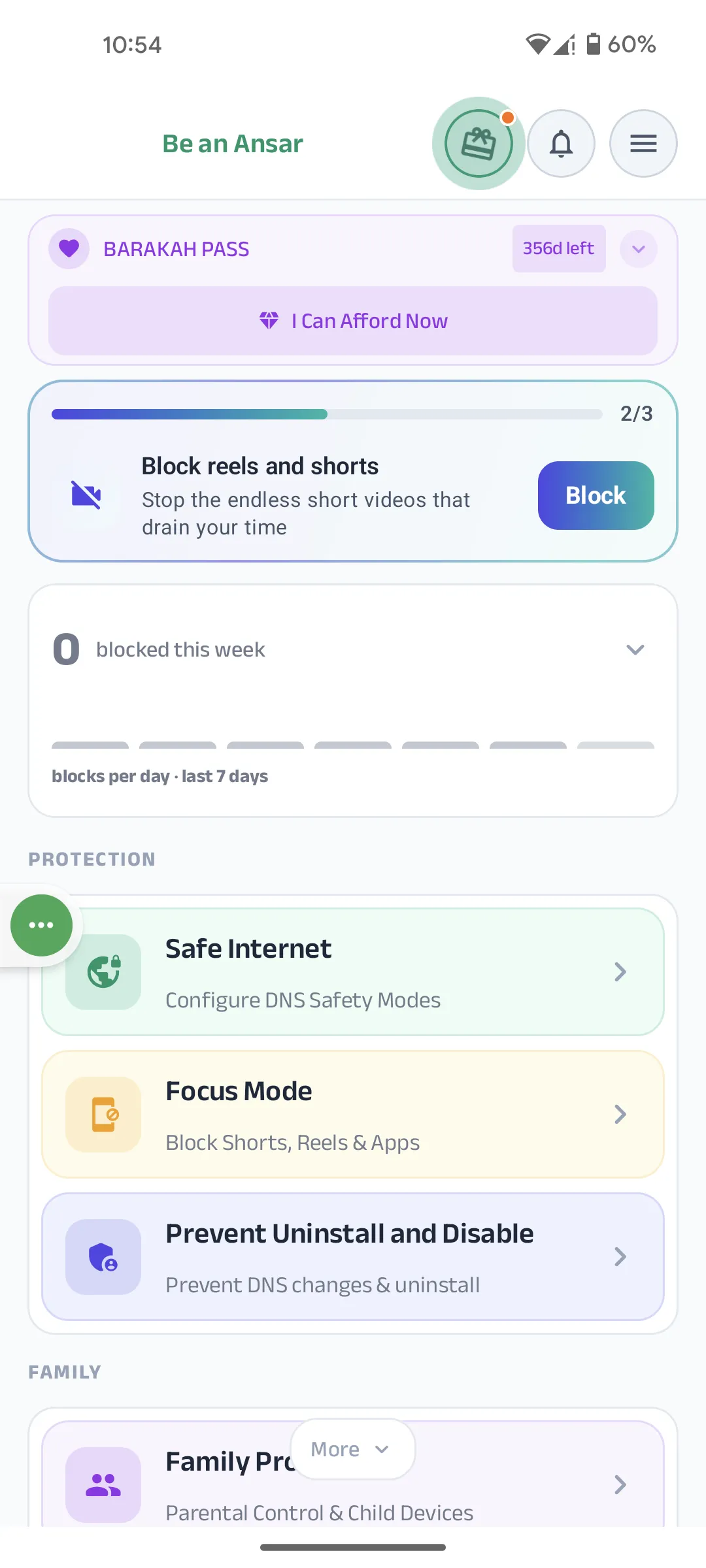
Open the Kahf Guard App and tap Safe Internet on the main dashboard. If it says “No Protection,” that’s just the starting point. Kahf Guard offers three filtering levels — choose the one that fits the user who’ll be on the device.
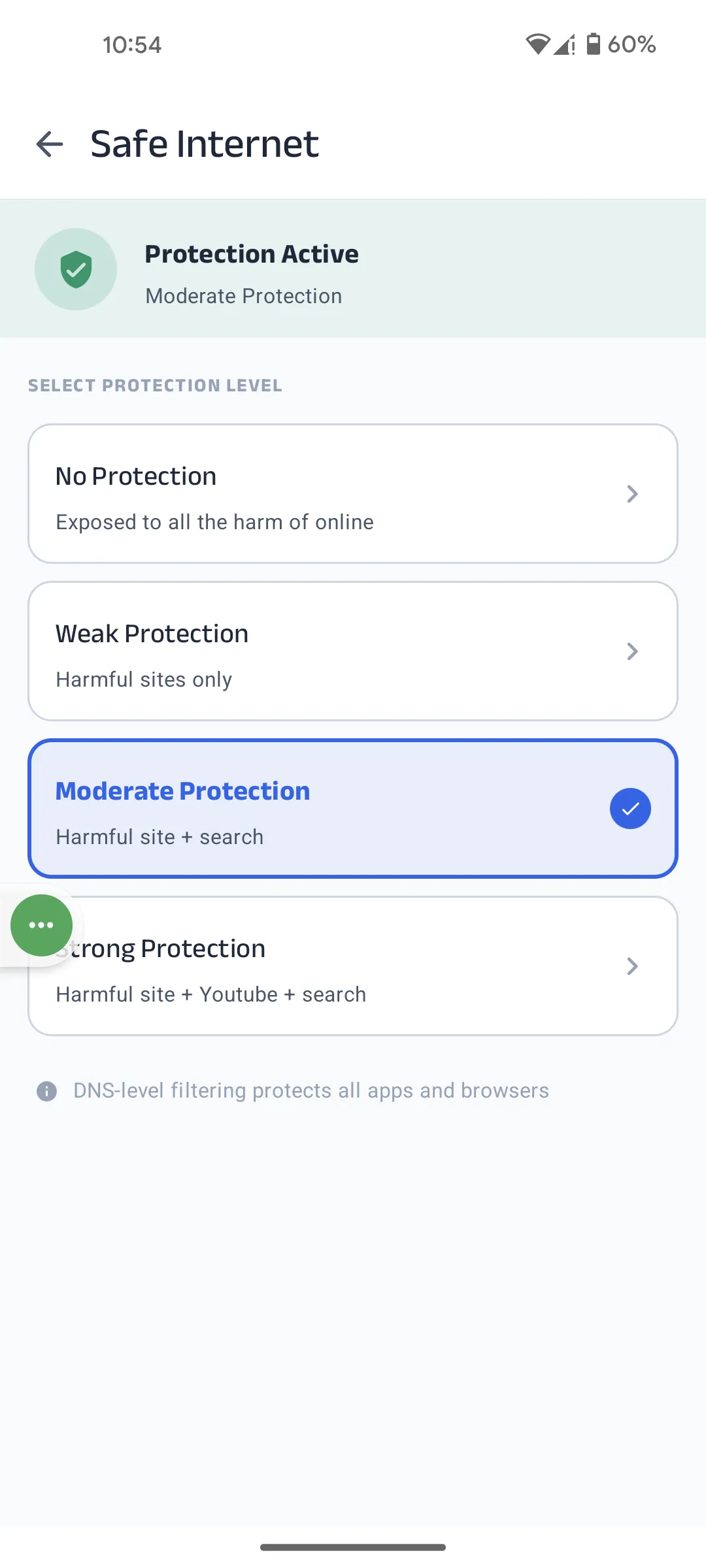
| Level | What It Blocks |
|---|---|
| Weak | Known harmful, dangerous, and explicitly inappropriate websites. |
| Moderate ⭐ | Everything in Weak, plus enforced Safe Search on Google & Bing so explicit results never appear. |
| Strong | Everything in Moderate, plus YouTube Restricted Mode. This level also disables YouTube comments to keep interactions clean — best choice for a child’s device. |
Step 2: Apply DNS on Your Device
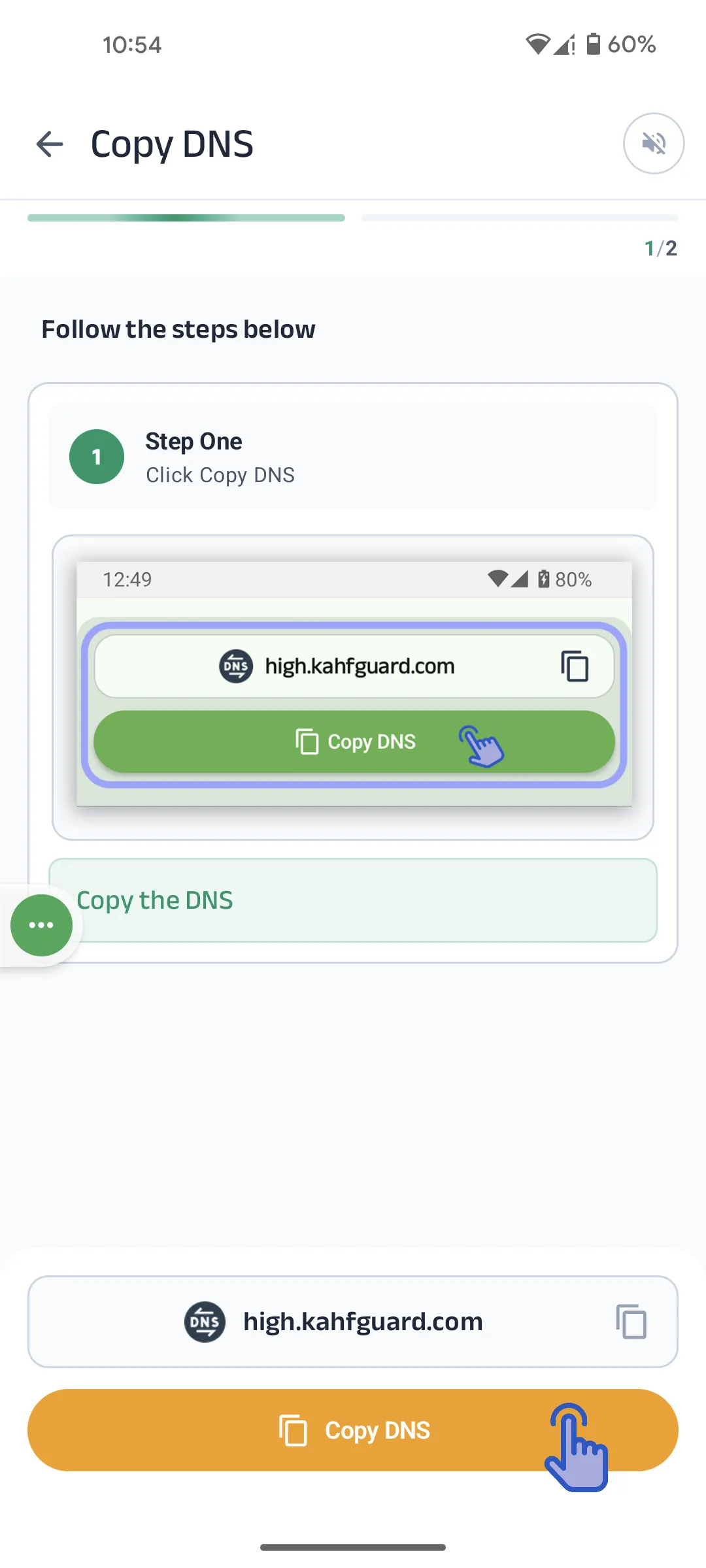
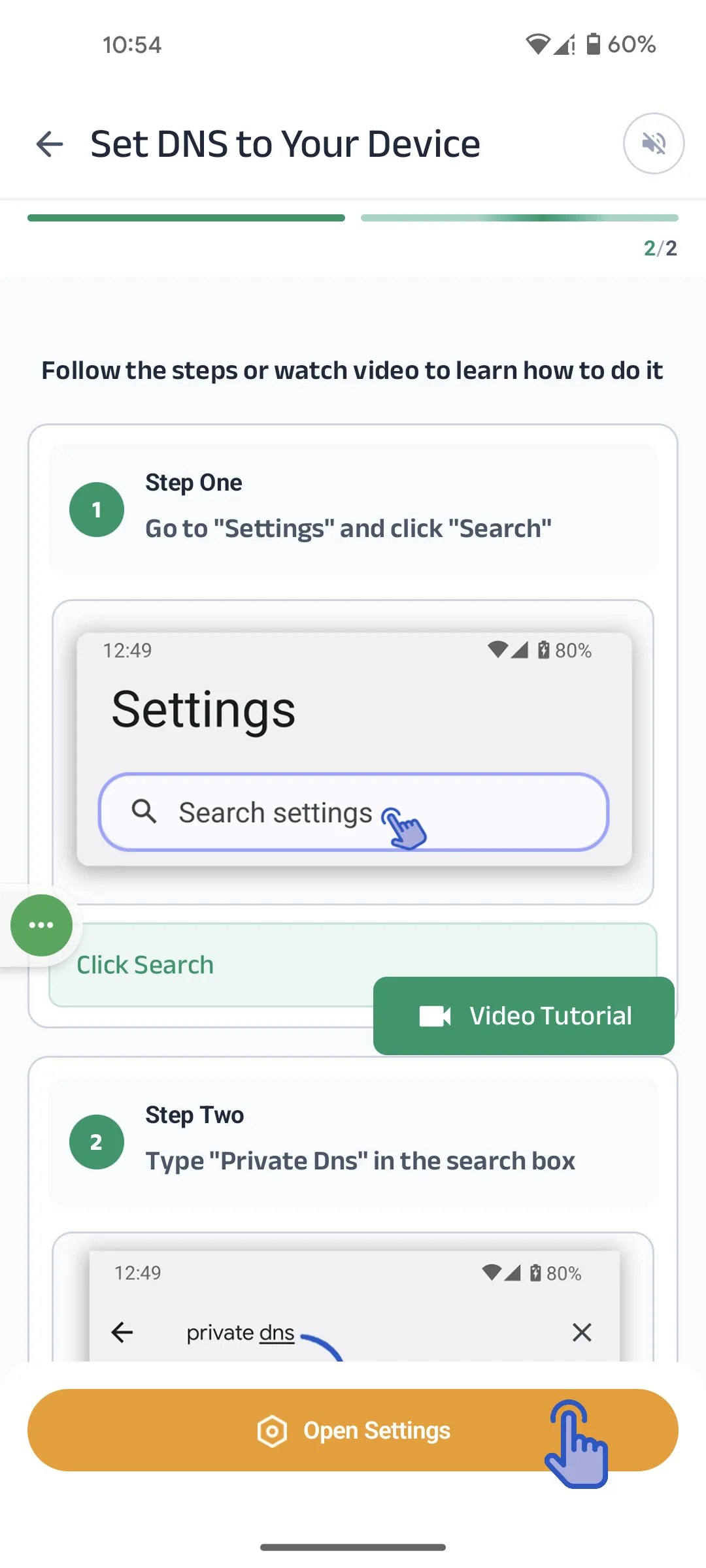
After selecting a level (e.g., Moderate), Kahf Guard gives you a DNS address to paste into your Android settings. The app walks you through the entire process.
- Tap your selected level, then tap Copy DNS. For Moderate it copies
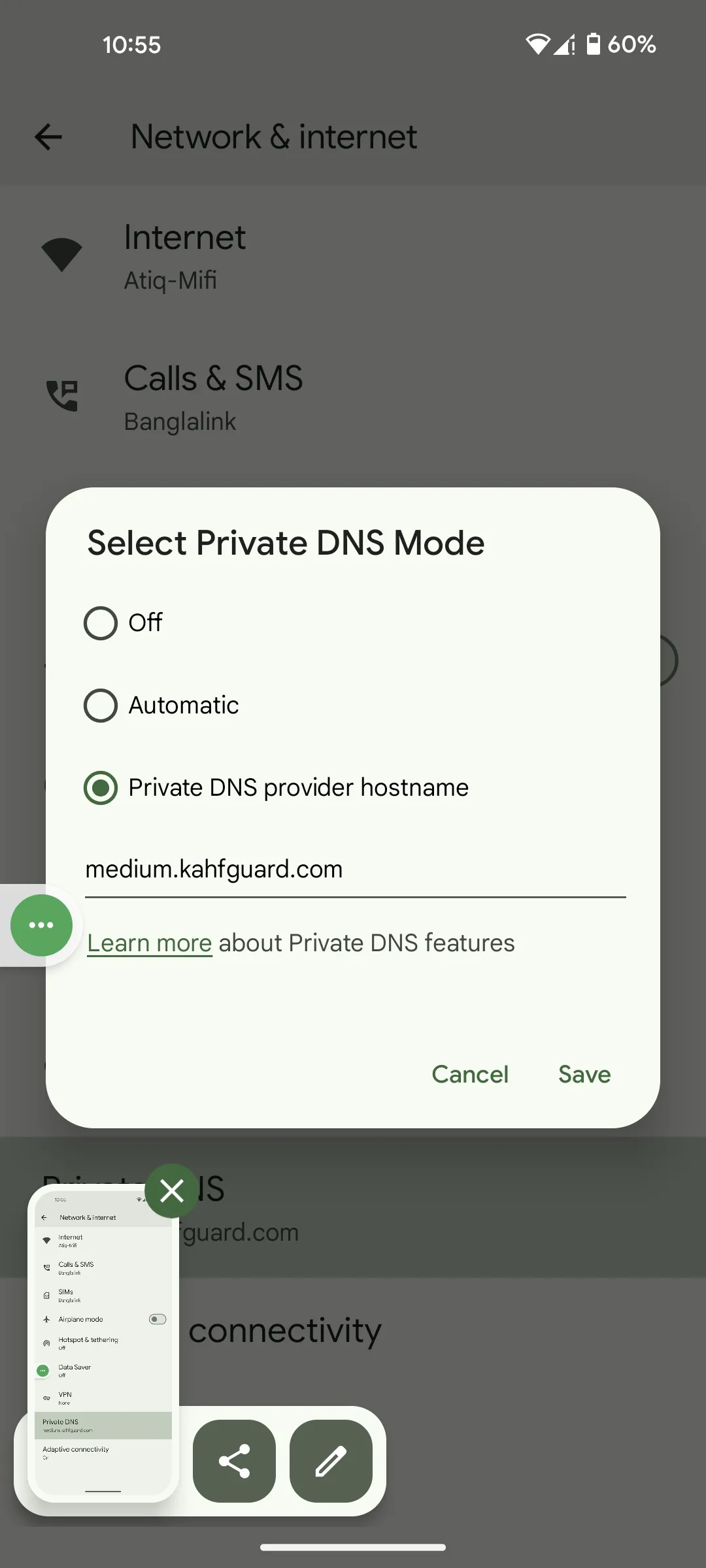
medium.kahfguard.com; for Strong it copieshigh.kahfguard.com. - Tap Open Settings to go to your Android system settings.
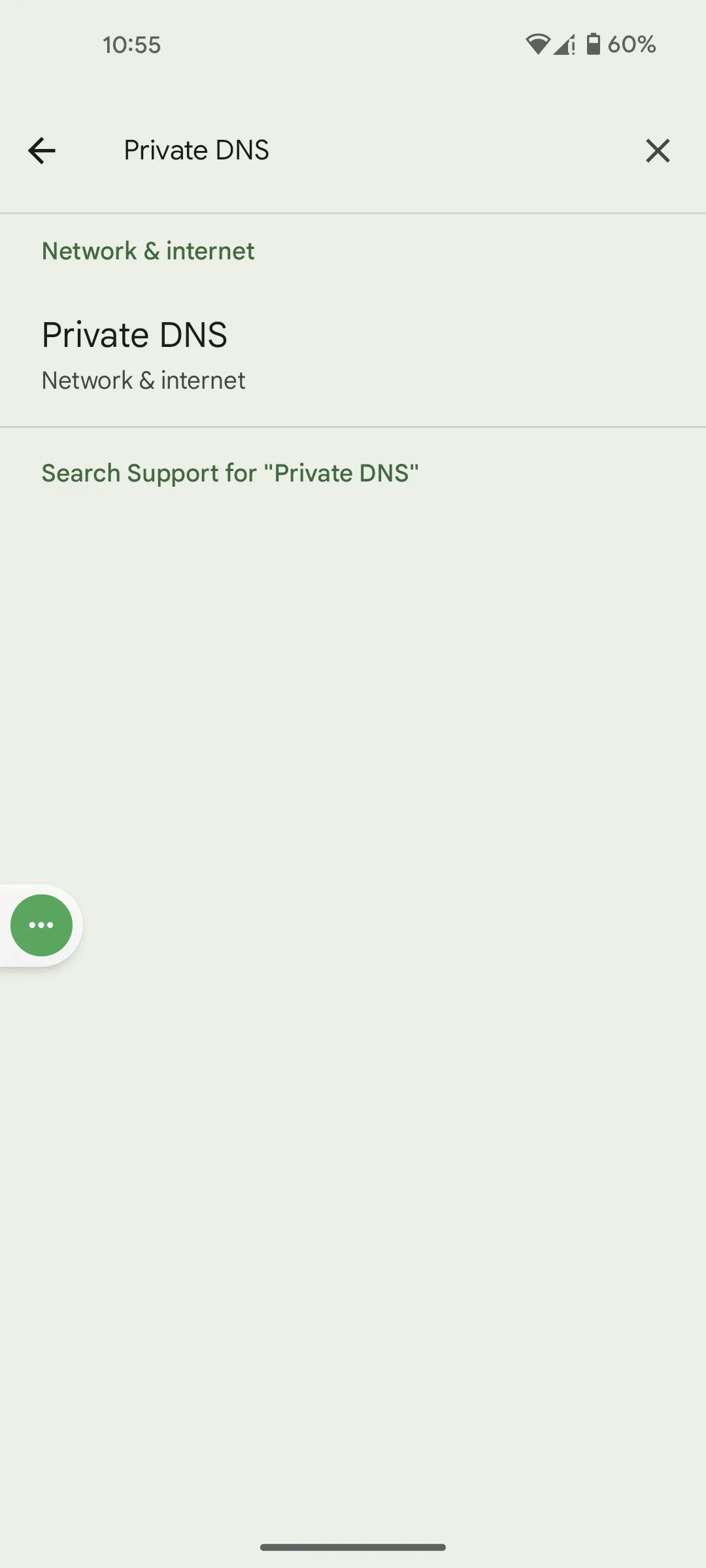
- Type Private DNS in the settings search bar and open the result.
- Select Private DNS provider hostname (the manual option).
- Paste the copied address into the box and tap Save.
Step 3: Make It Tamper-Proof
Protection only works when it’s on. These settings prevent changing DNS or uninstalling the app — critical on a child’s device, and useful for your own willpower.
- Scroll to the Prevent uninstall and disable section in Kahf Guard.
- Tap Prevent DNS change, then allow the prompts for background optimization and notifications.
- Grant Accessibility Service: find Kahf Guard in your phone’s Accessibility settings and enable Use Kahf Guard protection.
- Enable Uninstall prevention and set a disable wait time (1 minute to 6 hours). This timer deters impulse — nothing can be turned off in a moment of weakness.
Is it working? Open check.kahfguard.com in any browser. The page confirms whether Kahf Guard is active on your connection.
Check NowThat’s the complete setup. With Safe Internet active and locked, your Android device becomes a cleaner, more peaceful space — harmful sites filtered, searches kept safe, and your protection just out of reach of easy tampering. Browse with peace of mind, insha’Allah.
Frequently Asked Questions
Does Kahf Guard Safe Internet use a VPN?
No. It uses Private DNS, so your traffic is filtered at the network level without going through a VPN tunnel. Your connection stays direct and private.
Which protection level should I choose?
Moderate suits most users. Strong adds YouTube Restricted Mode and is the best choice for a child's device.
Can a child change the DNS?
Not while Prevent DNS change and Uninstall prevention are on. Changing requires a parental code or the disable wait time to expire.
How do I verify Safe Internet is working?
Open check.kahfguard.com in your browser. A confirmation page tells you whether Kahf Guard protection is active on your connection.