How to Set App Time Limits on Android with Kahf Guard
Give any app a daily budget on Android. When time's up, Kahf Guard locks the app until the next day. Step-by-step setup with screenshots and gradual reduction strategy.
Willpower loses to infinite feeds. Games and social apps are designed to keep you scrolling, and “just five more minutes” rarely stays at five. A hard daily limit changes the math — every app gets a budget, and once it’s used up, the app shuts off until the next day. Here’s how to set this up on Android with Kahf Guard.
What You'll Need
- An Android phone or tablet
- Kahf Guard App installed
- About 3 minutes
Why Hard Limits Work When Willpower Doesn’t
- It’s a budget, not a battle. Decide once that an app gets 45 minutes, then stop deciding all day.
- The lock is real. At 100% the app shuts off until midnight — no snooze, no “five more minutes” you can talk yourself into.
- You can see it coming. Alerts at 50%, 80%, 90%, and 95% of your limit let you know where you are, so the cutoff is never a surprise.
- Every day is a fresh start. The clock resets at midnight, so each morning begins with a full budget.
Step 1: Open the Screen Time Limit Feature
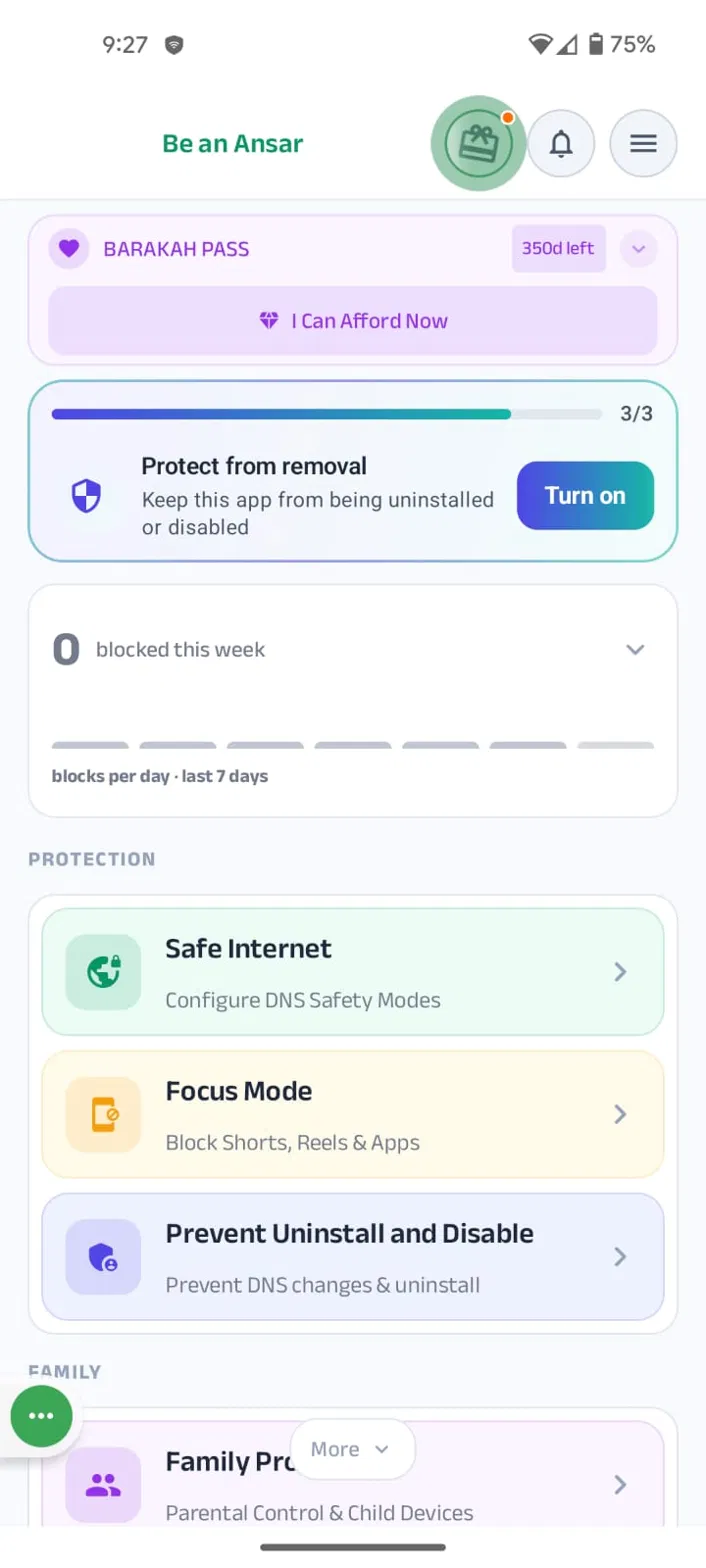
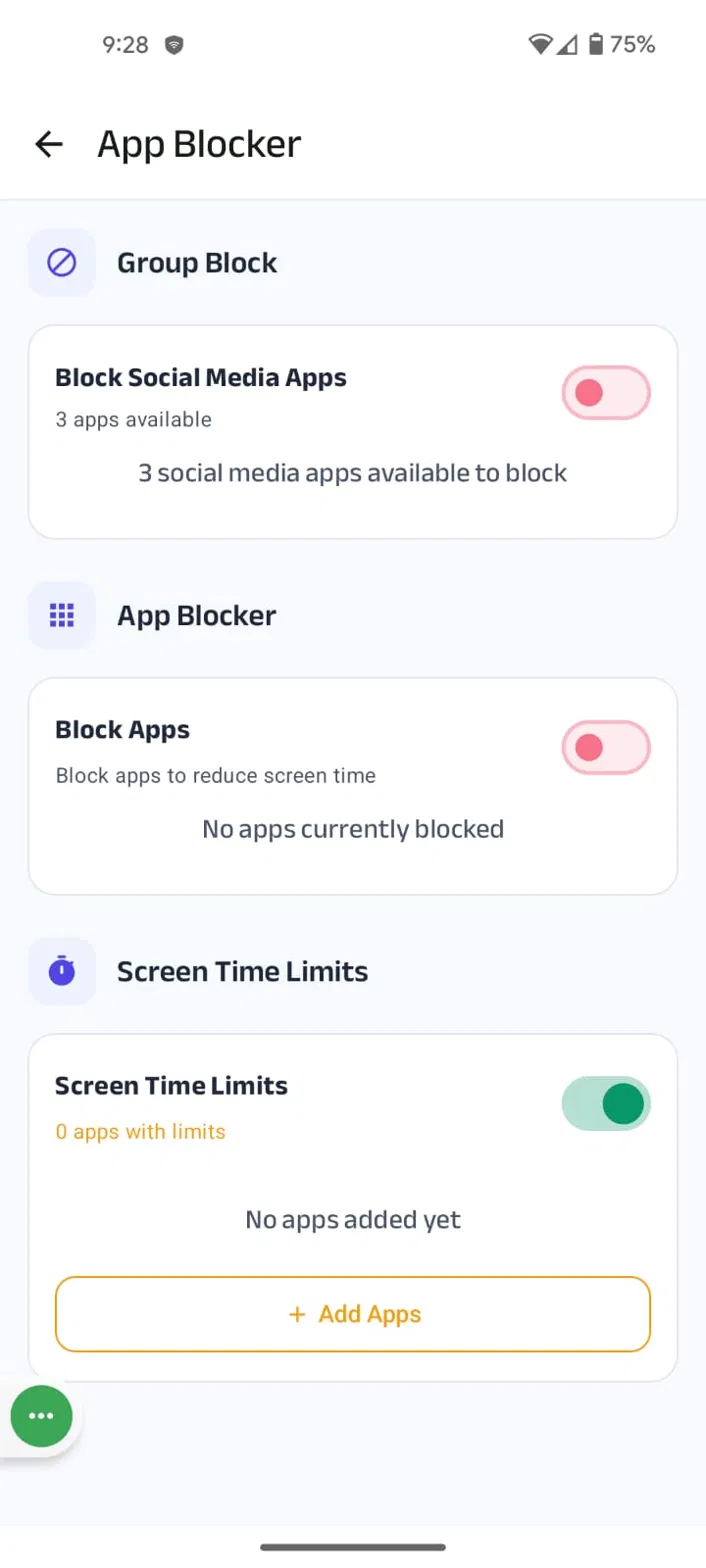
Tap Focus Mode from the Kahf Guard dashboard, then open App Blocker. Scroll to the Screen Time Limit section — this is the hard-limit tool that shuts an app off when its daily budget is used up. (It’s separate from the regular App Blocker, which blocks apps outright.)
Step 2: Enable App Usage Access
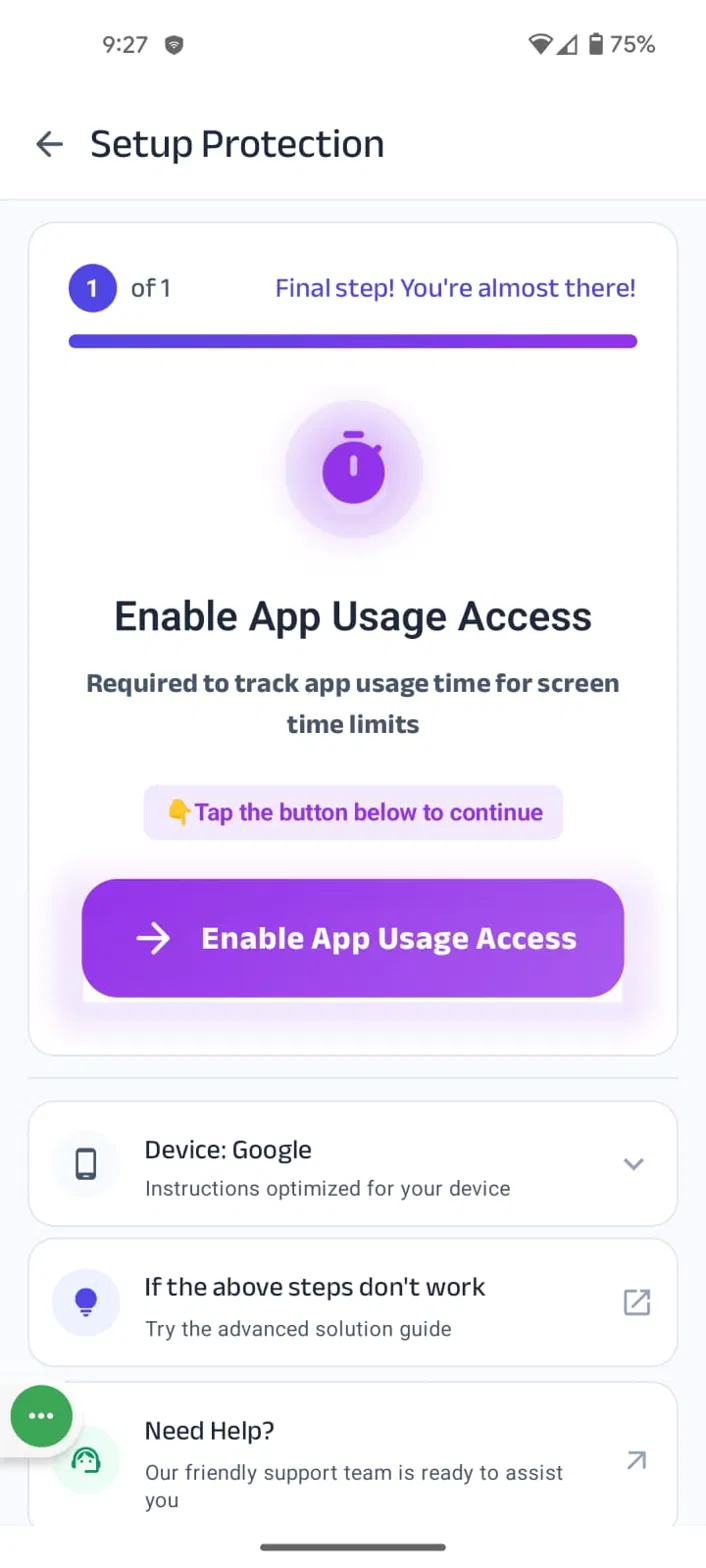
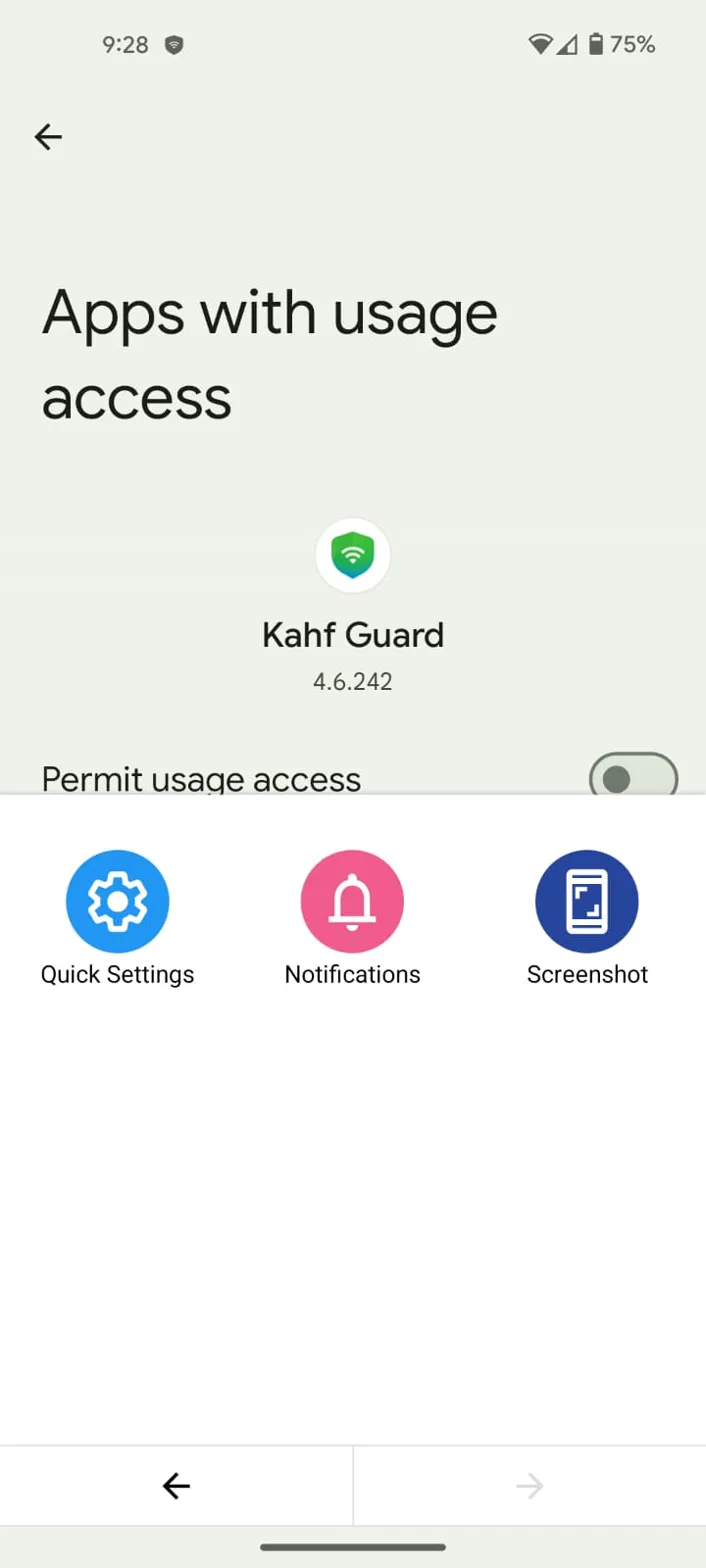
Screen Time Limit needs one Android permission to count how long each app is open: App Usage Access. Tap Enable App Usage Access, find Kahf Guard in the system list, and toggle on Permit usage access. If this is your first blocking feature, you’ll also be prompted for Accessibility and battery-optimization access — grant them so Android doesn’t put the app to sleep.
Step 3: Pick Your Apps & Set Budgets
Back in Screen Time Limit, tap Add App and choose any app from the list — a game, a social app, a shopping app. Set the daily allowance on the dial: 1 minute to 6 hours, with quick presets at 15m, 30m, 1h, 2h, 3h, 4h, and 6h. Tap Set Limit.
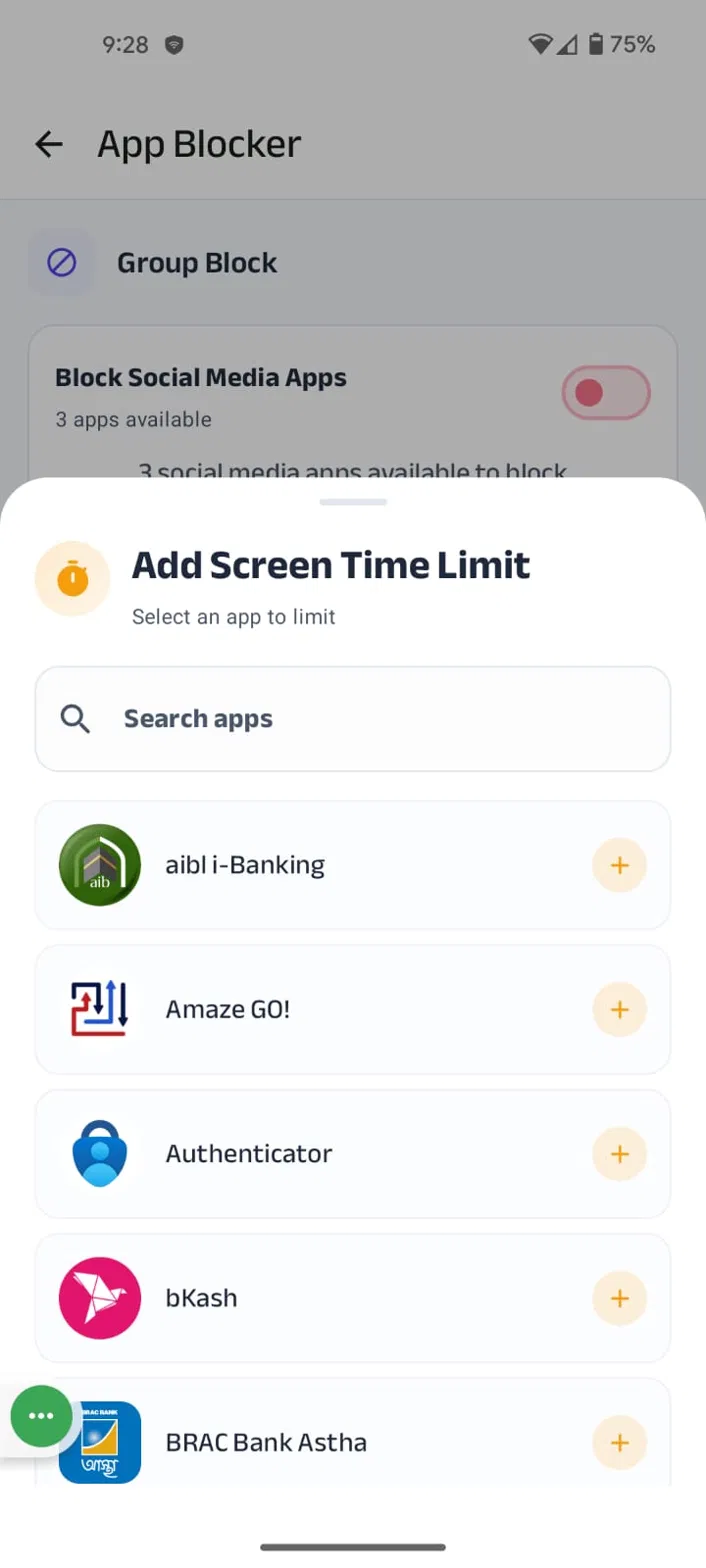
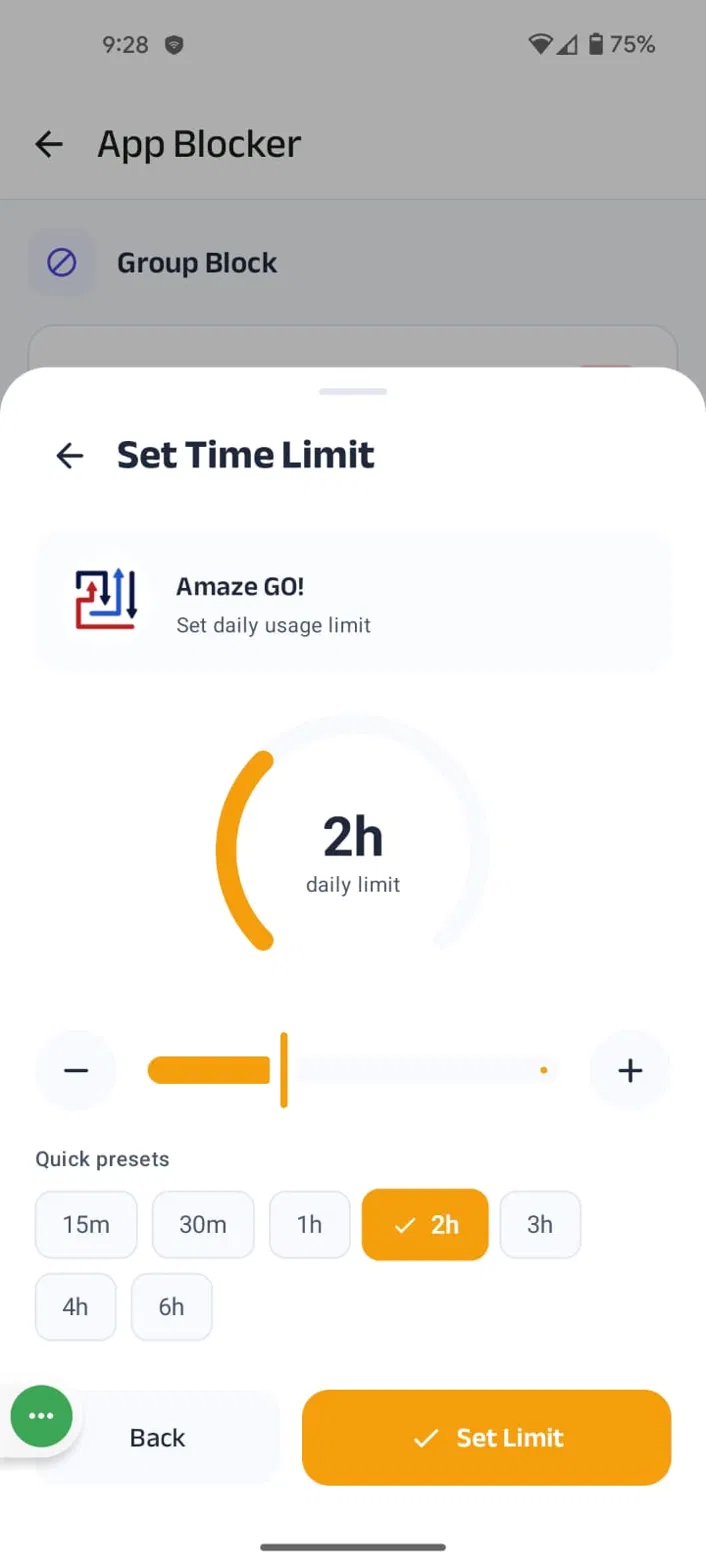
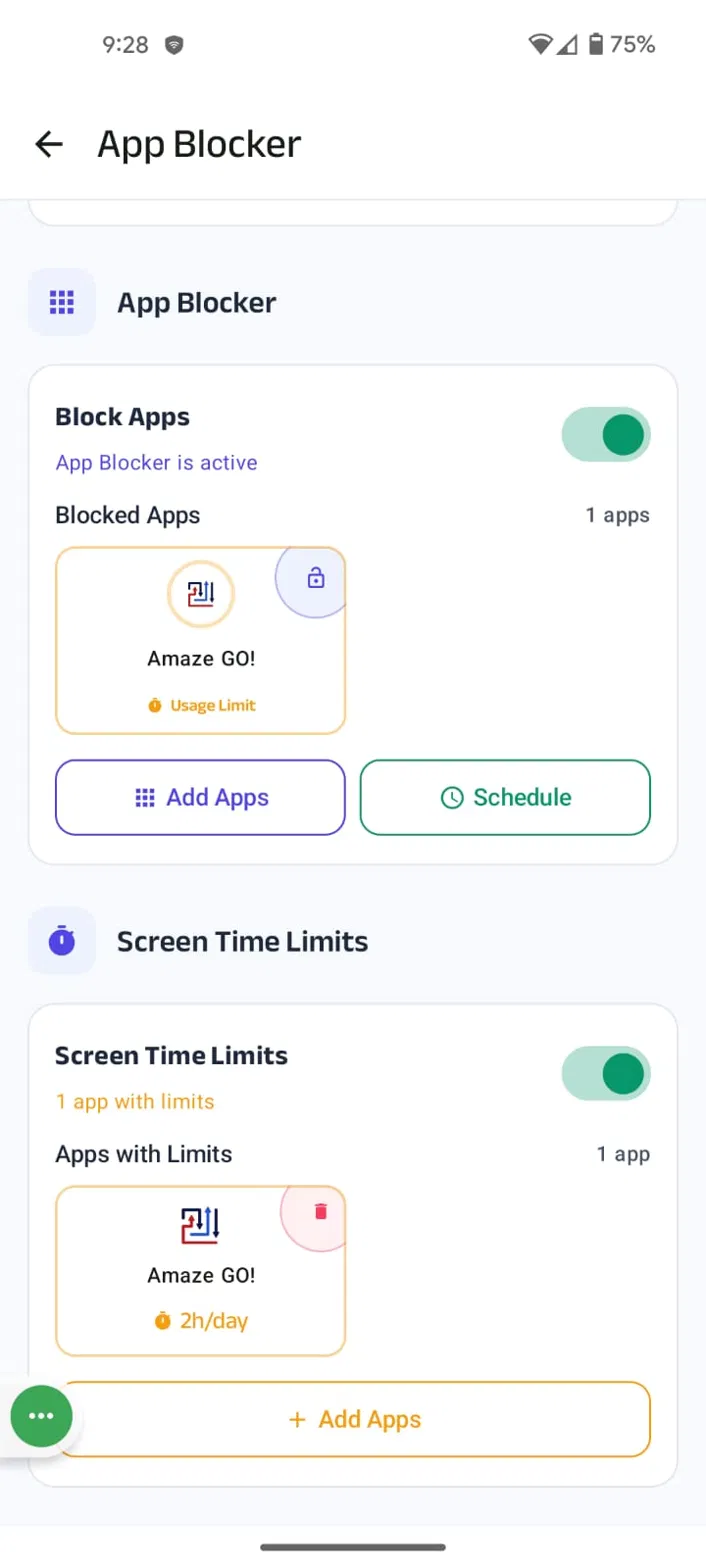
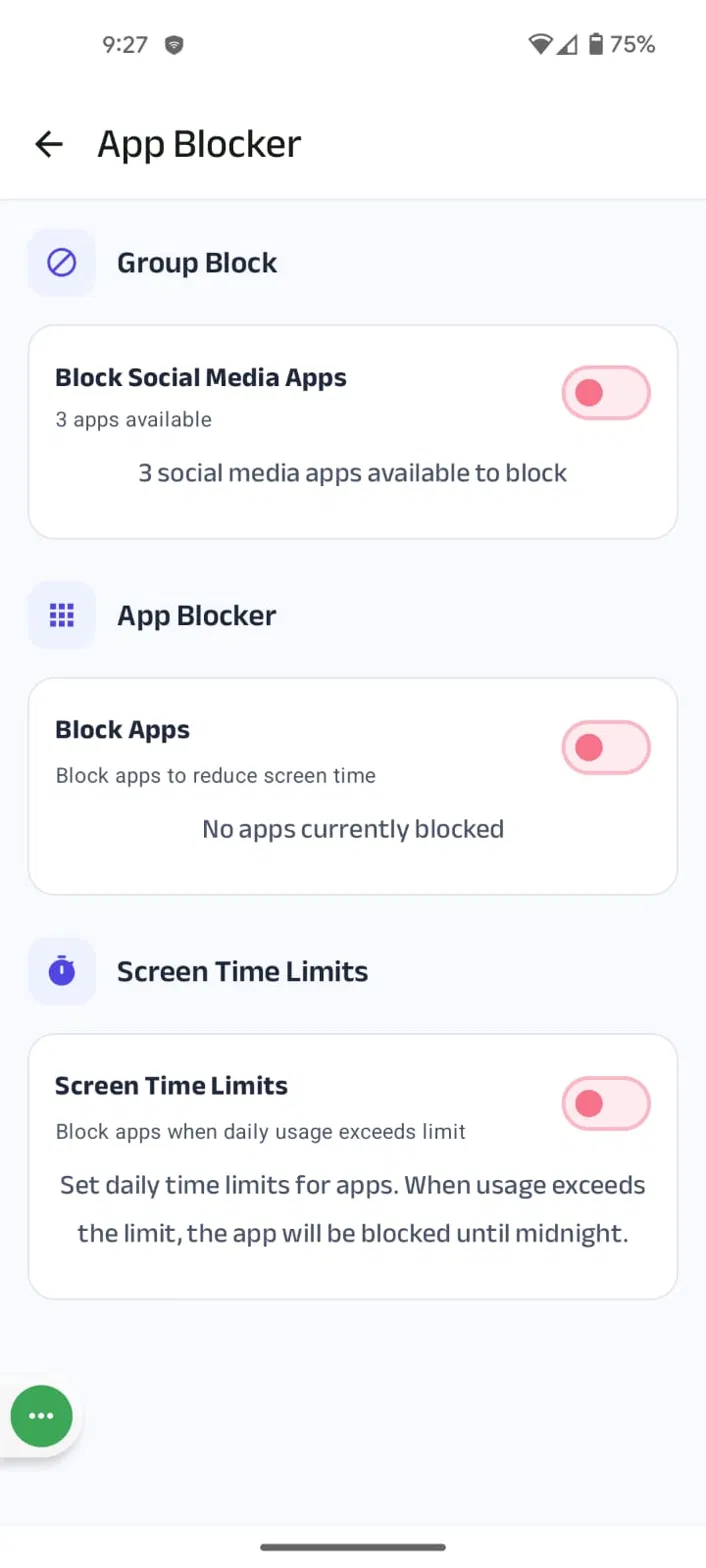
The app now shows its limit, and Kahf Guard automatically locks it when you touch it. Repeat for every app you want to budget.
Step 4: Reduce Gradually, Not Abruptly
Going from two hours to zero overnight usually ends in frustration — and a limit you disable in a weak moment. Instead, step down gradually. If you average two hours on an app, start this week at 1h 45m and reduce by 15 minutes each week. In a month you’ll be at one hour, never feeling deprived, and the habit sticks because you never fought it.
| Week | Limit | Progress |
|---|---|---|
| Week 1 | 1h 45m | ████████████░░░ 88% |
| Week 2 | 1h 30m | ██████████░░░░░ 75% |
| Week 3 | 1h 15m | ████████░░░░░░░ 63% |
| Week 4 | 1h 00m | ██████░░░░░░░░░ 50% |
Frequently Asked Questions
What happens when I hit my daily limit?
The app is blocked for the rest of the day and reopens at midnight, when the limit resets. If you try to open it before then, Kahf Guard sends you to the block screen and won't let you in.
Do I get a warning before the app locks?
Yes. Kahf Guard warns you as you approach your limit — at 50%, 80%, 90%, and 95%, with vibration added for the last two — so the cutoff is never a surprise.
How is this different from the usage alert feature?
Usage alerts only send a notification and let the app keep running — awareness without enforcement. Screen Time Limit is the hard version: at 100% the app actually shuts off until the next day. Use alerts to monitor your habits, and limits when you want to stop.
Can Kahf Guard see what I do inside apps?
No. App Usage Access only shows which app is open and for how long — it never reads your messages, content, or in-app activity. Limits run on usage time alone.
Can I set limits on my child's apps too?
Yes. The same daily limits can be pushed from the parent's app to the child's device, so games, YouTube, and social apps shut off when their time is up.
Is the feature free?
Screen Time Limit is a Premium feature. If a paid plan isn't an option, the Barakah Pass unlocks every Premium feature for completely free, funded by community sponsors.