How to Track App Usage & Screen Time with Kahf Guard (Android)
See exactly where your screen time goes. Enable Kahf Guard's app usage tracking on Android — usage access permission, weekly trends, and a social media breakdown.
Smartphones are designed to capture our attention, making it easy to lose track of time. To regain control of your day, awareness is the first step — and screen time tracking is one of the most effective tools for personal productivity and mental well-being.
Kahf Guard includes an app usage statistics tool that shows exactly how you spend your screen time. This tutorial explains how to activate and use this feature on your Android device.
What You'll Need
- An Android phone or tablet
- Kahf Guard App installed
- About 3 minutes
Why Track App Usage?
Tracking your app usage helps you:
- Identify Time-Wasters: Discover which apps consume your time without providing value.
- Set Realistic Goals: Establish a baseline to reduce screen time gradually.
- Boost Productivity: Reclaim hours for hobbies, family, or professional goals.
Step 1: Locate Today’s Activity
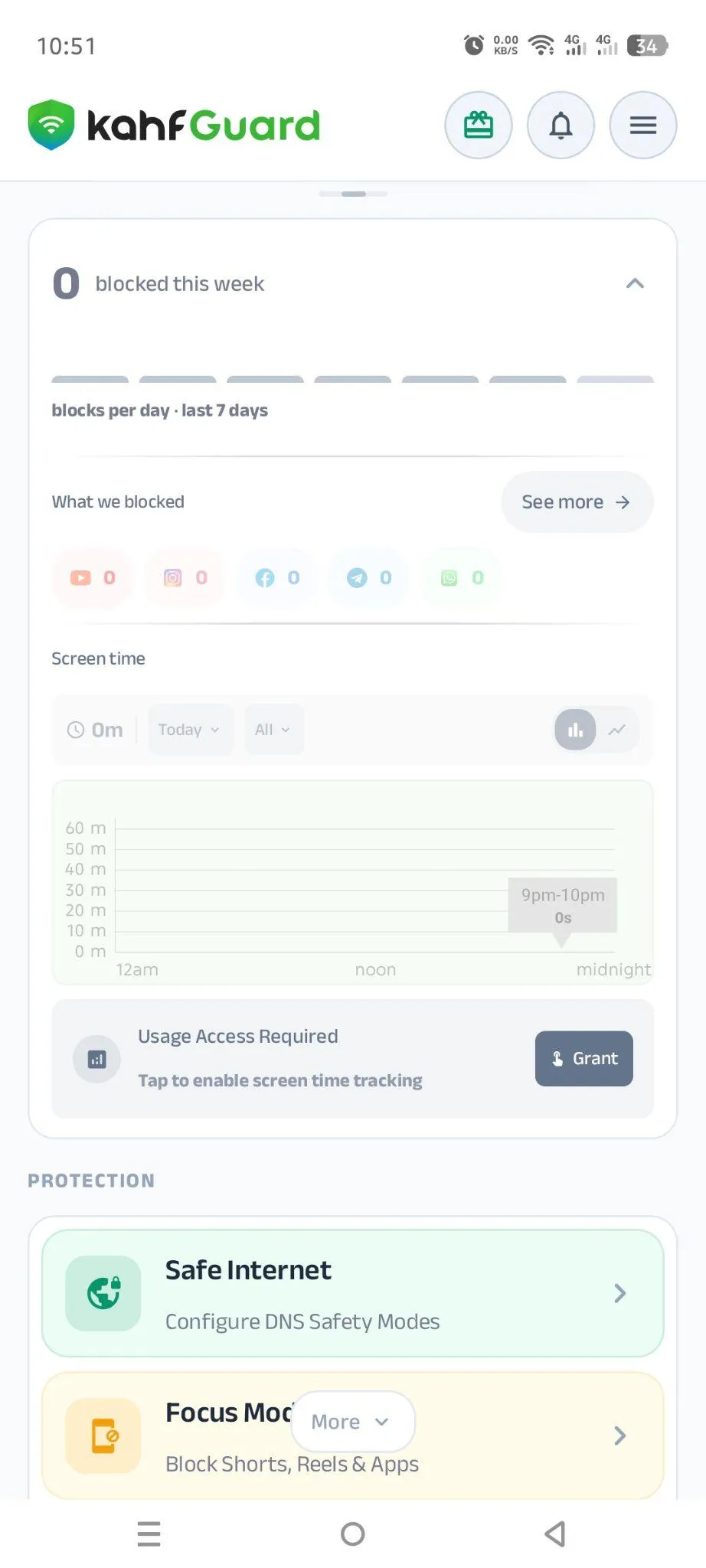
Open the Kahf Guard app. Near the top of the main dashboard, tap the Today’s Activity section to initiate setup.
Step 2: Grant Usage Access Permission
Android requires explicit consent for apps to monitor usage.
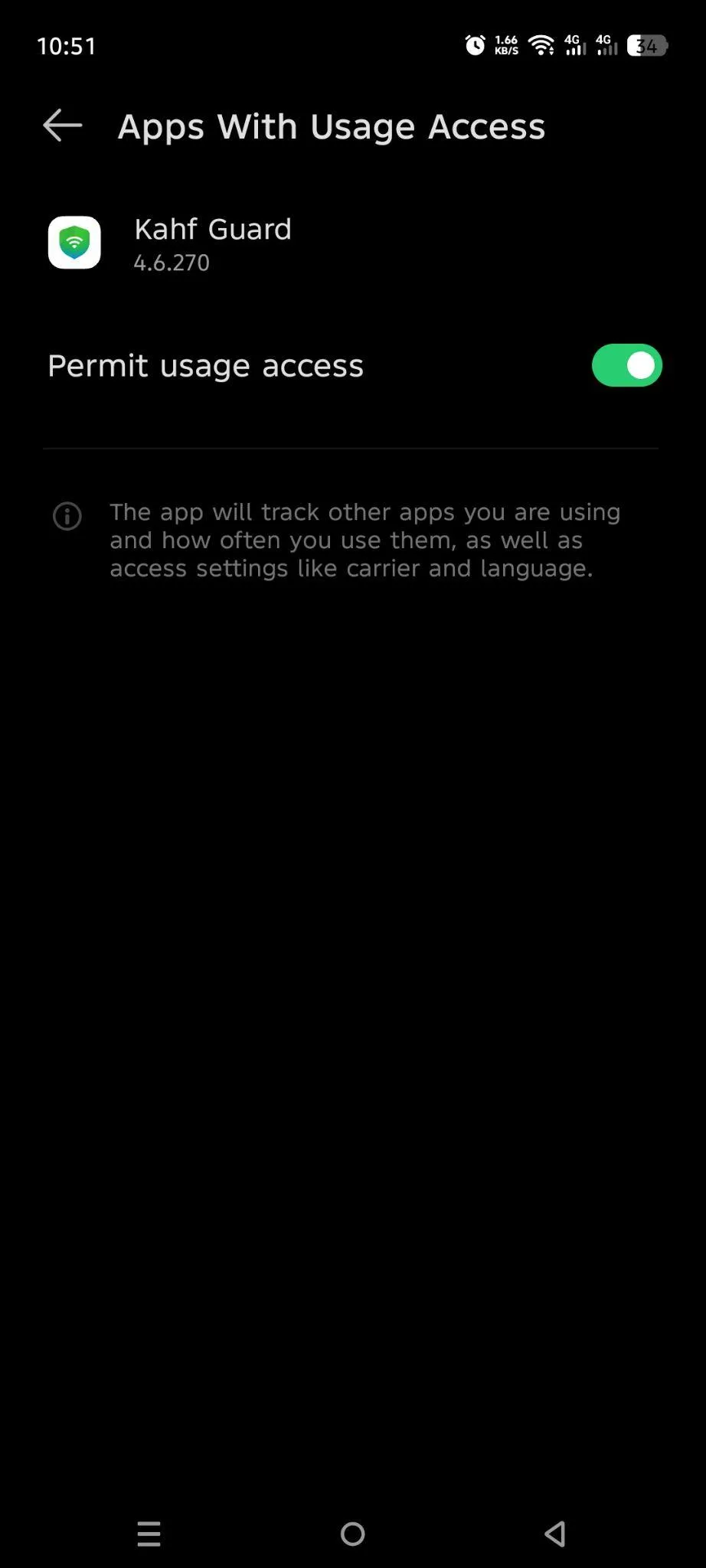
- When prompted, follow the on-screen instructions to open your phone’s system settings.
- Find Kahf Guard in the list of installed apps.
- Toggle the switch to Allow usage tracking (or “Permit usage access”).
Step 3: Analyze Usage Trends
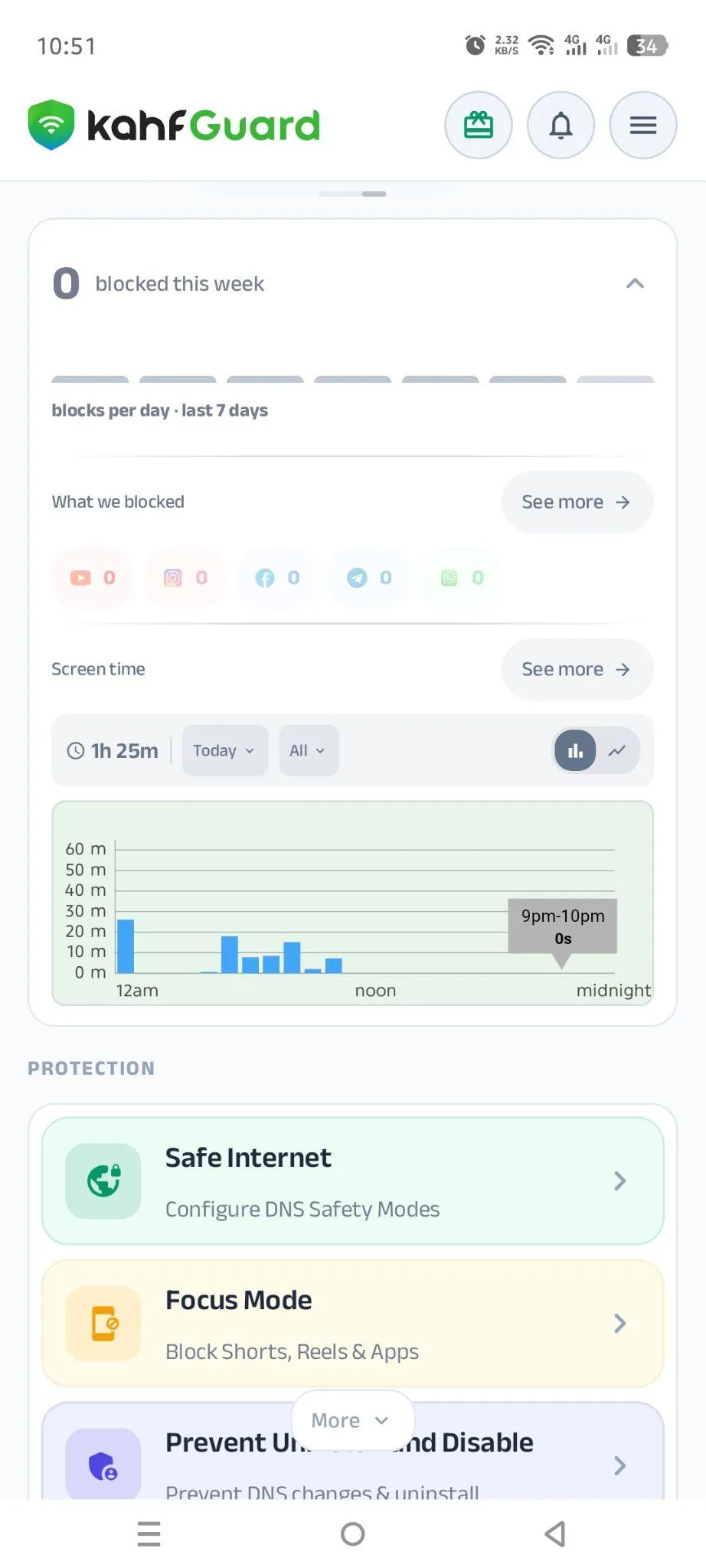
Return to the Kahf Guard app. The dashboard now displays your digital activity. You can review historical data over the past 28 days to identify long-term trends — such as increased phone usage on weekends, or specific apps consuming your week.
Step 4: Monitor Social Media Consumption
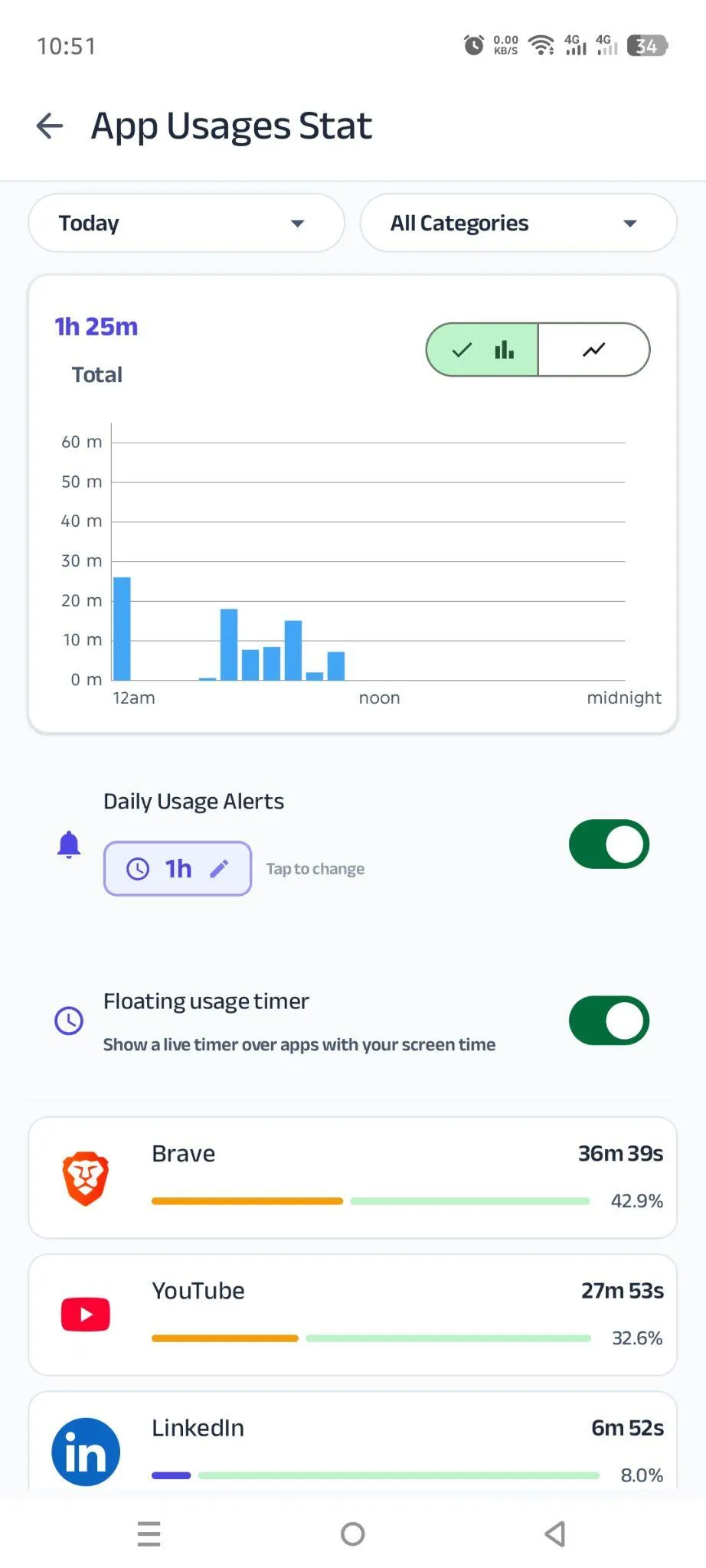
Kahf Guard provides a specialized breakdown of time spent exclusively on social media platforms. This metric helps you reduce doom-scrolling without affecting time spent on productive tools like email or educational apps.
With Kahf Guard’s app usage feature, you gain transparency over your smartphone habits, enabling mindful decisions about your time.
Frequently Asked Questions
Does usage tracking read my messages or private data?
No. Kahf Guard only sees which apps are open and for how long. Messages, photos, browsing, and other private data are never accessed.
Why does Android ask for "usage access" permission?
Android requires explicit consent before any app can monitor how long other apps are used. This permission is what makes screen time tracking possible, and you can revoke it anytime in system settings.
How far back can I view my usage history?
The dashboard shows today's activity plus historical trends over the past 28 days, so you can spot long-term patterns like weekend phone use.
Does tracking social media time stop me from using the apps?
No — it only measures time by default. The breakdown simply shows how much time goes to social platforms, so you can make an informed choice. Pair it with Focus Mode to actually block them when needed.