Private DNS on Android: Set Up Safe Filtering Free
Quick answer
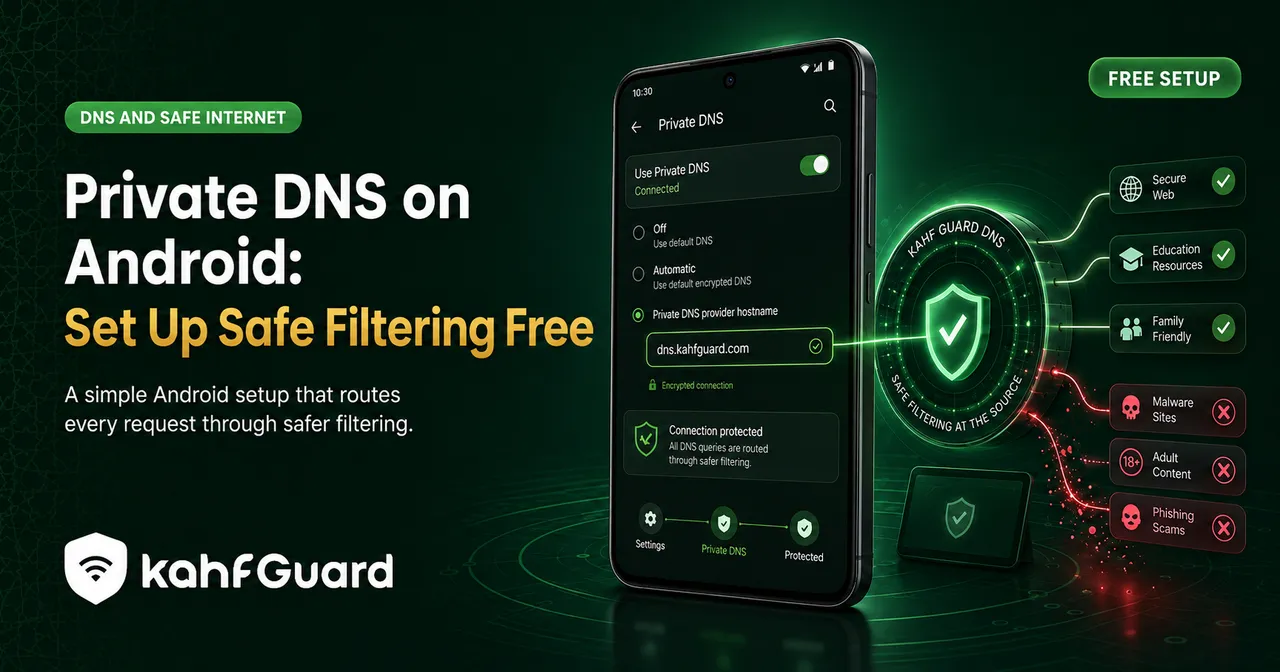
Private DNS on Android routes your device's DNS lookups through an encrypted resolver you set by hostname. Go to Settings › Network & internet › Private DNS, choose "Private DNS provider hostname," and enter a filtering hostname such as Kahf Guard's. It applies system-wide and is free. For filtering that can't be switched off, use the Kahf Guard app, which adds a tamper lock.
Android has a filtering feature most people never notice: Private DNS. It sits in the network settings and, once pointed at the right resolver, filters the whole phone at the source — every app, on Wi-Fi and mobile data alike. This guide walks through turning it on, choosing a hostname that actually filters harm, and fixing the errors that trip people up.
What is Private DNS on Android?
Short answer
Private DNS is a built-in Android feature (from Android 9 onward) that sends your DNS lookups over an encrypted connection to a resolver you choose. Because it works at the system level, it covers every app at once, on both Wi-Fi and mobile data — unlike a filter tied to one network or one browser.
On its own, “private” means the lookups are encrypted so they can’t be read in transit. What it filters depends entirely on the resolver you point it at. To block adult content at the DNS level, point it at KahfDNS — then you get harmful categories blocked, encrypted, system-wide.
How to set up Private DNS on Android
- Open the Private DNS setting.
Go to Settings › Network & internet › Private DNS. On Samsung phones it's under Settings › Connections › More connection settings › Private DNS.
- Choose "Private DNS provider hostname".
Pick this option rather than Off or Automatic — Automatic only encrypts if your normal DNS supports it and doesn't add filtering.
- Enter a filtering hostname.
Type the hostname of a filtering resolver — for example, Kahf Guard's private DNS hostname, shown in the app or on its setup page. Enter the hostname exactly; it isn't an IP address.
- Save and confirm.
Tap Save. Your phone reconnects through the filtering resolver, and it applies to every app straight away.
Which Private DNS hostname should you use?
Short answer
Use a resolver that filters, not just one that encrypts. A filtering hostname blocks adult, scam, and malicious categories at the lookup; a plain one only hides your lookups. Kahf Guard's private DNS filters harmful categories by default, so "private" and "safe" come together.
Private DNS setting vs the Kahf Guard app
Both filter at the system level. The difference is whether the filter can be switched off:
| Manual Private DNS | Kahf Guard app | |
|---|---|---|
| Covers every app | ✓ | ✓ |
| Filters harmful categories | ~ depends on hostname | ✓ |
| Strong / Moderate levels | ✕ | ✓ |
| Can't be switched off | ✕ toggle in settings | ✓ DNS-change lock |
| Manage a child's device | ✕ | ✓ |
If you just want safer browsing on your own phone, the manual hostname does the job. If the filter needs to hold — on a child’s device, or through a weak moment — the app adds the lock the setting doesn’t have. The family DNS filter covers the household version of this.
Troubleshooting Private DNS on Android
- "Can't connect to private DNS server"
Almost always a mistyped hostname — check the spelling, and remember it's a hostname, not an IP. Some networks also block the port encrypted DNS uses; try another network to confirm.
- The option is greyed out or missing
Private DNS needs Android 9 or later. Update if you can. On Samsung, look under Connections › More connection settings rather than Network & internet.
- It works on Wi-Fi but not mobile data (or the reverse)
Private DNS should apply to both. If one drops, re-select "Private DNS provider hostname," re-enter it, and reconnect to that network once.
- A public Wi-Fi login page won't load
Captive portals (hotels, airports) can clash with Private DNS. Set it to Off to pass the login page, then switch it back on.
- The setting keeps reverting to Off
Without a lock, another user or a reset can change it. Use the Kahf Guard app's DNS-change protection so it stays put.
Set it up with Kahf Guard (locked)
- Install Kahf Guard.
Download it from the Google Play Store.
- Turn on Safe Internet Protection.
The app configures filtering DNS for you and lets you choose Strong or Moderate — no manual hostname to type.
- Enable the lock.
Switch on uninstall and DNS-change protection so the filter can't be turned off in settings.
For how DNS filtering works underneath all of this, see DNS protection explained.
Common questions
What is Private DNS on Android?
A built-in feature from Android 9 onward that routes your DNS lookups through an encrypted resolver you set by hostname, applied system-wide across every app on both Wi-Fi and mobile data.
How do I turn on Private DNS on Android?
Go to Settings › Network & internet › Private DNS, choose "Private DNS provider hostname," enter the hostname, and save. On Samsung it's under Connections › More connection settings › Private DNS.
What is the best private DNS for safe filtering?
A resolver that filters harmful categories, not just one that encrypts. Kahf Guard's private DNS filters adult, scam, and malicious domains, so privacy and safety come together.
Does Private DNS block adult content?
Only if the resolver you set does filtering. A plain private DNS just encrypts your lookups; a filtering one like Kahf Guard's blocks adult and harmful categories.
Why won't my Private DNS connect?
Usually a mistyped hostname, a network blocking the encrypted-DNS port, or a captive-portal login page. Check the spelling, try another network, or set it to Off to pass a public Wi-Fi login, then back on.
Can Private DNS be turned off?
Yes, in the same settings menu — which is why a filter that must hold needs the Kahf Guard app's DNS-change protection, especially on a child's device.
Is Private DNS free?
Yes. The Android feature is free, and Kahf Guard's filtering DNS is free too.
Filter your whole phone, free
Set a filtering Private DNS in two minutes — or let the app do it and lock it so it holds.
Get Kahf Guard free