How to Block Adult Content on Any Device (Step by Step)
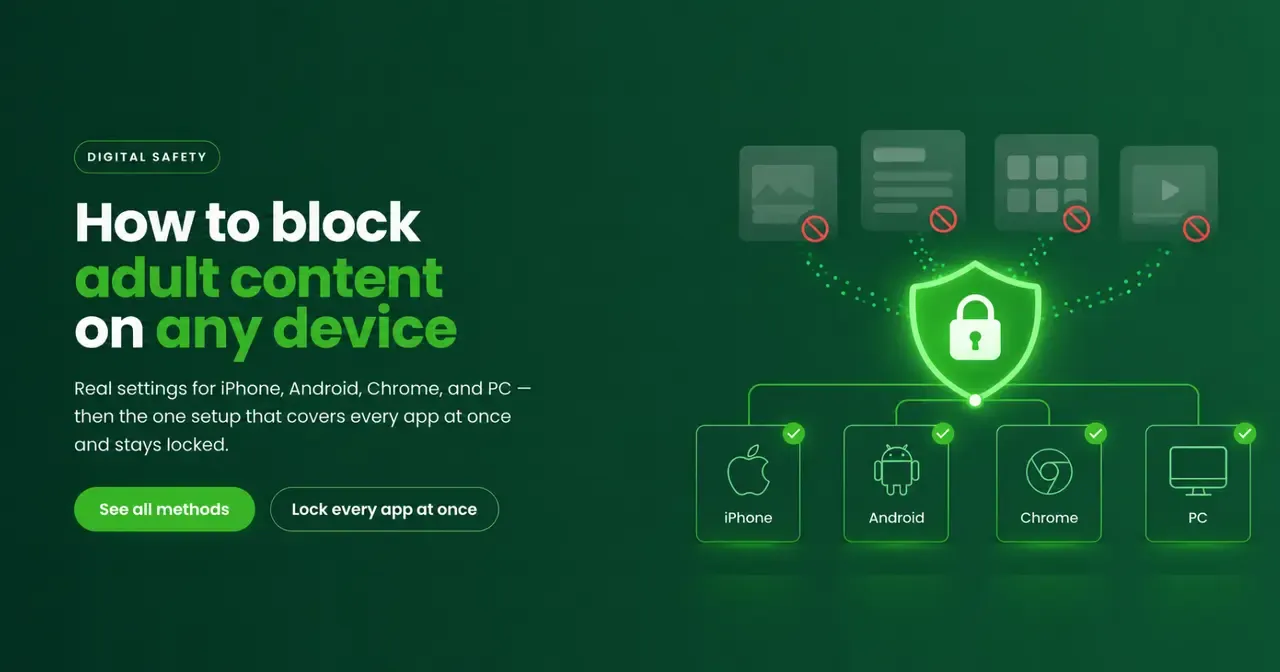
Search for how to block adult content and you’ll find a dozen half-answers — one setting for Safari, another for Chrome, none of them touching the apps where most of it actually appears. This guide gives you the real steps for each device first, then the single setup that covers all of them at once and doesn’t quietly switch itself off.
The quickest reliable way to block adult content is to filter it at the DNS level, which covers every app and browser on a device at once. Each platform also has free built-in settings — iOS Screen Time, Android SafeSearch and Private DNS, and account-level SafeSearch for Chrome — but they cover less and switch off easily. Use them as a first layer, not the whole answer.
How to block adult content on iPhone
iOS has the strongest built-in filter of any platform. It lives inside Screen Time and blocks a broad adult-site list across Safari and app browsers.
- Open Screen Time.
Go to
Settings › Screen Timeand turn it on. Set a Screen Time passcode that's different from your unlock code — this is what stops the filter being switched off. - Open Content & Privacy Restrictions.
Tap
Content & Privacy Restrictionsand switch it on. - Limit web content.
Tap
Content Restrictions › Web Contentand choose Limit Adult Websites. - Add your own sites.
Under the same screen you can list specific sites to never allow, or only-allow a short approved list for a child's device.
How to block adult content on Android
Android needs two settings working together: SafeSearch for Google results, and a filtering Private DNS for everything else.
Turn on SafeSearch
- Open Google settings.
In the Google app, tap your profile picture, then
Settings › SafeSearch— or visitgoogle.com/safesearch. - Set it to Filter.
Choose Filter to hide explicit results in Google Search and Images.
Set a filtering Private DNS (covers every app)
- Open Private DNS.
Go to
Settings › Network & internet › Private DNS. - Choose provider hostname.
Select Private DNS provider hostname and enter a filtering DNS hostname (for example, Kahf Guard's), then save. This filters adult and harmful domains across every browser and app.
How to block adult websites in Chrome
Chrome has no built-in adult filter of its own — its Safe Browsing feature targets malware and phishing, not explicit content. You block adult content around Chrome, not inside it.
- Lock SafeSearch to the account.
Sign in to your Google account and enable SafeSearch at
google.com/safesearch. On a managed or family account it stays enforced. - Filter at the network instead.
To cover Chrome and every other browser at once, set a filtering DNS at the device or router level rather than relying on a browser setting.
How to block adult content on a Windows PC
- Enforce SafeSearch.
Turn on SafeSearch in your browser's search settings and your Google or Bing account.
- Use a family account for children.
Microsoft Family Safety filters web content in Edge for a child account and reports activity to the parent.
- Cover every browser with DNS.
Point the PC — or the whole home network via the router — at a filtering DNS so the block applies no matter which browser is open.
Why on-device settings alone don’t hold
Built-in settings leak for four predictable reasons: they cover one browser or one search engine, they miss in-app content, they need setting up on every device separately, and none of them lock — so the filter lasts exactly until someone decides to remove it.
- Partial coverage.
iOS filtering is strongest in Safari; Android SafeSearch only touches Google. Content that arrives another way walks straight through.
- In-app browsers slip past.
Social apps open links inside themselves, outside the reach of a browser setting or extension.
- Every device is its own job.
Phone, tablet, and laptop each need separate setup, and a new device starts with no protection at all.
- Nothing locks it.
A SafeSearch toggle or a Private DNS entry can be reversed in the same menu that set it. Without a removal lock, the block is a suggestion.
The one-time setup that covers every device
Instead of chasing settings on each device, filter once at the DNS level and lock it. Kahf Guard blocks adult content across every app and browser on a device, applies to every device on your account, and holds the setting with uninstall and DNS-change protection — the lock the native tools are missing.
Here’s how the built-in options compare with a locked, source-level filter:
| Method | Every browser | In-app content | Removal lock | Per-device setup |
|---|---|---|---|---|
| iOS Limit Adult Websites | ~ Safari-first | ~ | ~ if passcode set | Each device |
| Android SafeSearch + DNS | ✓ with DNS | ✓ with DNS | ✕ | Each device |
| Chrome extension | ✕ one browser | ✕ | ✕ | Each browser |
| Kahf Guard (DNS + app-level) | ✓ | ✓ | ✓ | One account, all devices |
- Install Kahf Guard.
Download it from the Google Play Store or App Store on each device you want covered.
- Turn on Safe Internet Protection.
Switch it on and choose Strong or Moderate filtering.
- Lock it.
Enable uninstall protection and DNS-change protection so the filter can't be switched off later.
- Add the family.
Add each child's device to your account and manage every filter from your own phone.
For the full picture of why source-level filtering can’t be worked around, read the porn blocker that can’t be bypassed.
Common questions
How do I block adult websites in Chrome?
Chrome has no built-in adult filter beyond Safe Browsing, which targets malware and phishing. Enforce SafeSearch on your Google account, or filter at the DNS level to cover Chrome and every other browser at once. Extensions work but are removable.
Can I block porn on my phone for free?
Yes. iOS Screen Time's "Limit Adult Websites" and Android SafeSearch plus a filtering Private DNS are free. Kahf Guard's DNS-level filter is also free and covers the whole device rather than one browser.
Does the iPhone have a built-in porn blocker?
Effectively yes. Screen Time › Content & Privacy Restrictions › Web Content › "Limit Adult Websites" blocks a broad adult-site list, strongest in Safari. It's a good first layer but not exhaustive, and it can be turned off without a Screen Time passcode.
How do I block adult content on my child's phone?
Set the native restrictions with a passcode only you know, then add the child's device to a filtering account like Kahf Guard so filtering, uninstall protection, and DNS-change protection are all managed from your phone.
Why do blocked sites still get through?
Usually because the filter only covers one browser or one search engine, or a new app opened the link in its own in-app browser. Filtering at the DNS level closes those gaps by working across every app at once.
Can adult content be blocked without an app?
Partly. Native settings and a manual Private DNS entry work without extra apps, but they don't lock and need setting up on every device. An app adds the tamper-lock that keeps the filter in place.
Block it once, everywhere
Filter adult content across every app on every device, then lock it so it stays that way.
Get Kahf Guard free