Get Kahf Guard for Mac
Free to install. Takes about 2 minutes. Follow the 4 simple steps below.
Download for MacmacOS · .dmg installer
Using Windows? Get the Windows version →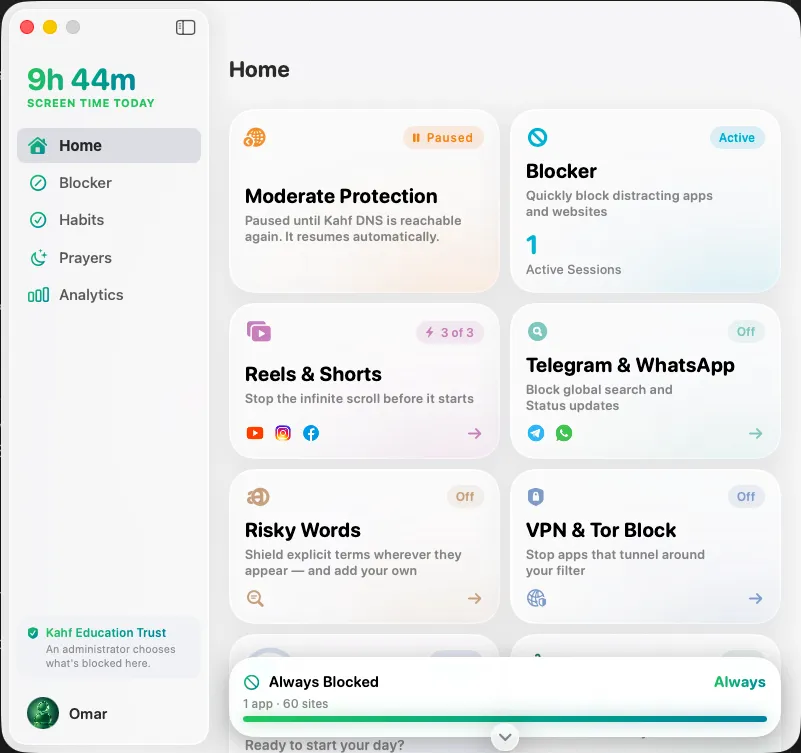
Install in 4 easy steps
-
Step 1: Click the green Download button
A file ending in ".dmg" will save to your Downloads folder. If Safari asks, choose Allow.
Tip: Find it by clicking the Downloads icon (down arrow) at the top right of Safari or at the right end of your Dock.
-
Step 2: Open the downloaded file
Double-click the Kahf Guard .dmg file. A small window opens.
-
Step 3: Drag Kahf Guard into Applications
In that window, drag the Kahf Guard icon onto the Applications folder. Wait a moment while it copies, then close the window.
-
Step 4: Open Kahf Guard
Open Launchpad or your Applications folder and click Kahf Guard. If macOS asks "Are you sure you want to open it?", click Open. Allow any permissions Kahf Guard asks for. They are needed for protection to work.
macOS showed a security message?
Macs show a confirmation message the first time you open any app downloaded from the internet. It is a routine check, not a sign of a problem.
- If you see "Kahf Guard cannot be opened", go to Apple menu > System Settings > Privacy & Security, scroll down and click "Open Anyway" next to Kahf Guard.
- Kahf Guard is made by Kahf, the team behind the Kahf Guard apps on Android and iPhone.
- The file comes directly from kahfguard.com. Never download it from anywhere else.
- You are always in control. To remove the app, drag Kahf Guard from Applications to the Bin.
Common questions
The window did not open after I double-clicked.
Wait a few seconds, the first open can be slow. If nothing happens, open Finder > Downloads and double-click the .dmg file again.
Where do I find Kahf Guard after installing?
Press Cmd + Space, type "Kahf Guard" and press Enter.
Does Kahf Guard slow down my Mac?
No. It is light and runs quietly in the background.
Stuck on any step? We are happy to help. Contact us or visit the Support Center.